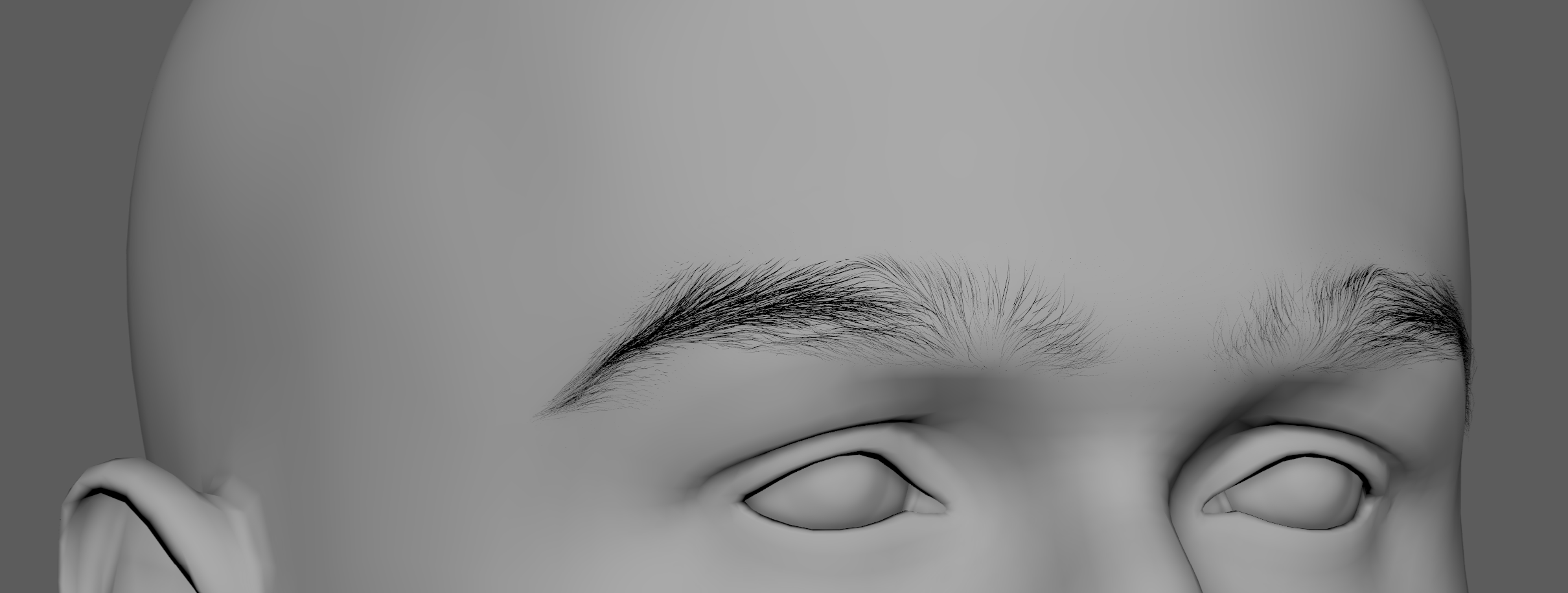
Creating Facial Hair with Ornatrix
In this tutorial we will create a complete facial hair groom using Ornatrix, including:
- Beard
- Eyebrows
- Eyelashes
- Peach fuzz
The goal is not only to reproduce a particular look, but also to build a flexible procedural setup which can be adjusted throughout production.
We will begin with the beard and gradually build the groom from its most important properties - distribution, length, and width - before moving into styling and secondary details such as clumping, curls, frizz, and outliers.
- Table of contents
- Creating Facial Hair with Ornatrix
Preparing the Distribution Mesh
Hair can be generated directly on the character mesh. However, for production work it is usually better to use a separate distribution mesh.
If the character topology has to change later in production, keeping the groom attached to a dedicated distribution surface can make the groom much easier to maintain. Instead of tying the complete setup directly to the final character geometry, we can use a polygon extraction from the original character as the surface responsible for hair generation.
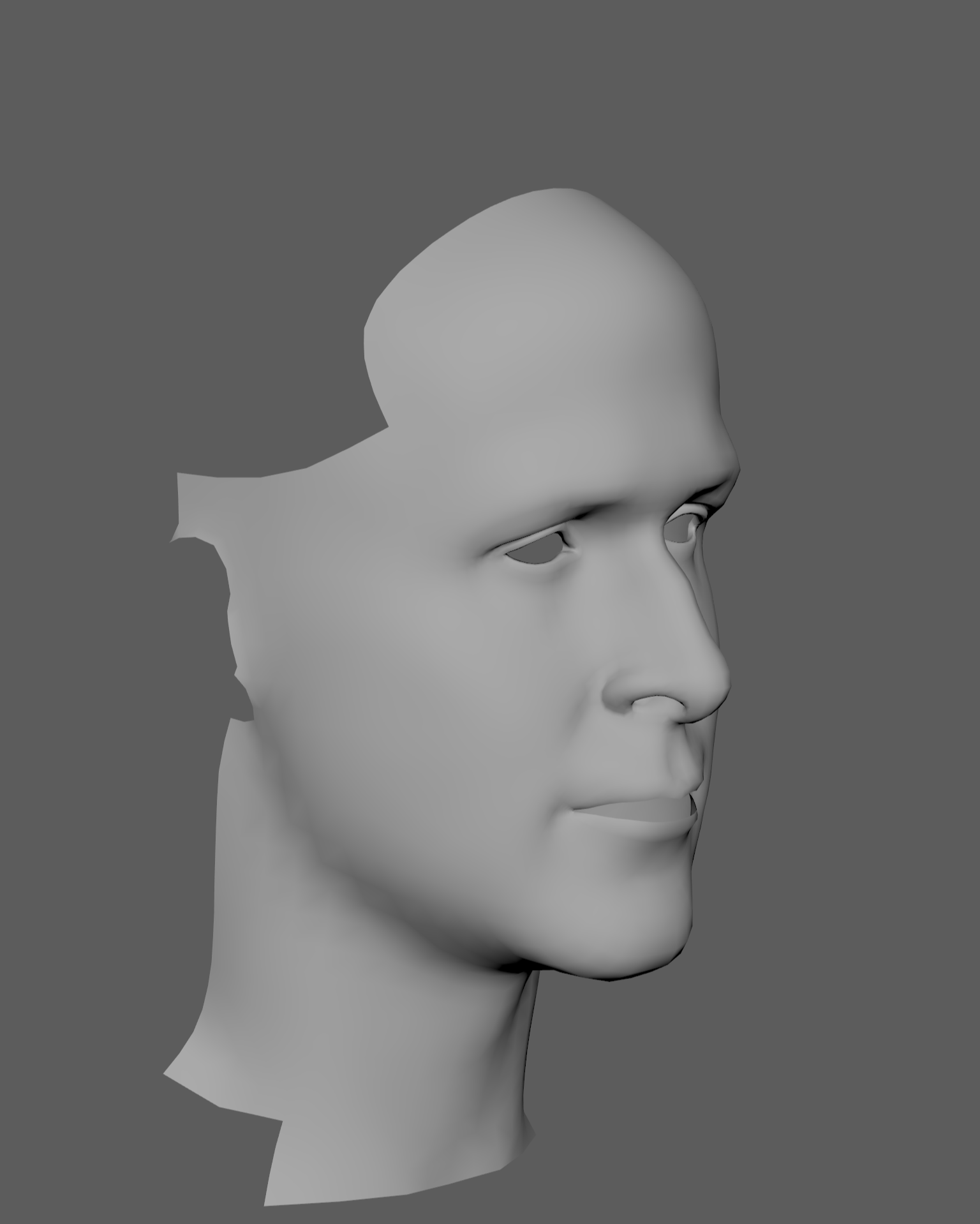
For more recommendations about preparing distribution surfaces and optimizing a groom, see Groom Optimization.
For this example, I extracted a single distribution mesh that will eventually be used for the beard, eyebrows, eyelashes, and other facial hair.
Notice that the extracted surface covers slightly more area than the final visible beard. This is intentional. Having some extra surface around the desired hairline gives us room to create smooth transitions in strand length and width later.
UVs
The distribution mesh also needs usable UV coordinates.
Technically, an Ornatrix groom can be built without UVs or bitmap maps. Strand Channels, procedural data, and other controls can be used instead.
In this tutorial, however, we will initially use bitmap maps because they provide a very direct and artist-friendly way to define the groom.
Later we will also see how some of these maps can be replaced or complemented by Strand Channels.
UVs will allow us to paint maps for properties such as:
- Hair distribution
- Strand length
- Strand width
- Effect multipliers
Before continuing:
- Center the pivot of the distribution mesh.
- Freeze its transforms.
- Delete its construction history.
- Make sure it has clean UVs.
Scene Scale
It is also important to establish the correct scene scale before starting the groom.
Many dimensional Ornatrix parameters use scene units. In this example Maya is configured in centimeters, and the character head has approximately realistic human dimensions.
Therefore, when we use a guide length of 6, for example, that corresponds to approximately 6 centimeters.
If your character or scene uses a different scale, copying the same numerical values may produce a very different result.
For this reason, use the values in this tutorial as a reference rather than as absolute settings. Always judge them relative to your character and your visual references.
Creating the Beard
Creating the Initial Groom
Select the distribution mesh and use Add Hair to Selection from the Ornatrix shelf.
This creates the initial operator stack containing the basic operators required to generate the groom:
- Guides from Mesh - generates the initial guides from the surface.
- Edit Guides - allows manual editing and grooming of the guides.
- Hair from Guides - interpolates dense hair from the guides.
- Change Width - controls strand thickness.
The name of each operator describes its primary purpose. For more detailed information about any operator, refer to its individual documentation page.
We will not need Edit Guides operator, so feel free to delete it from the stack. We end up with something like this: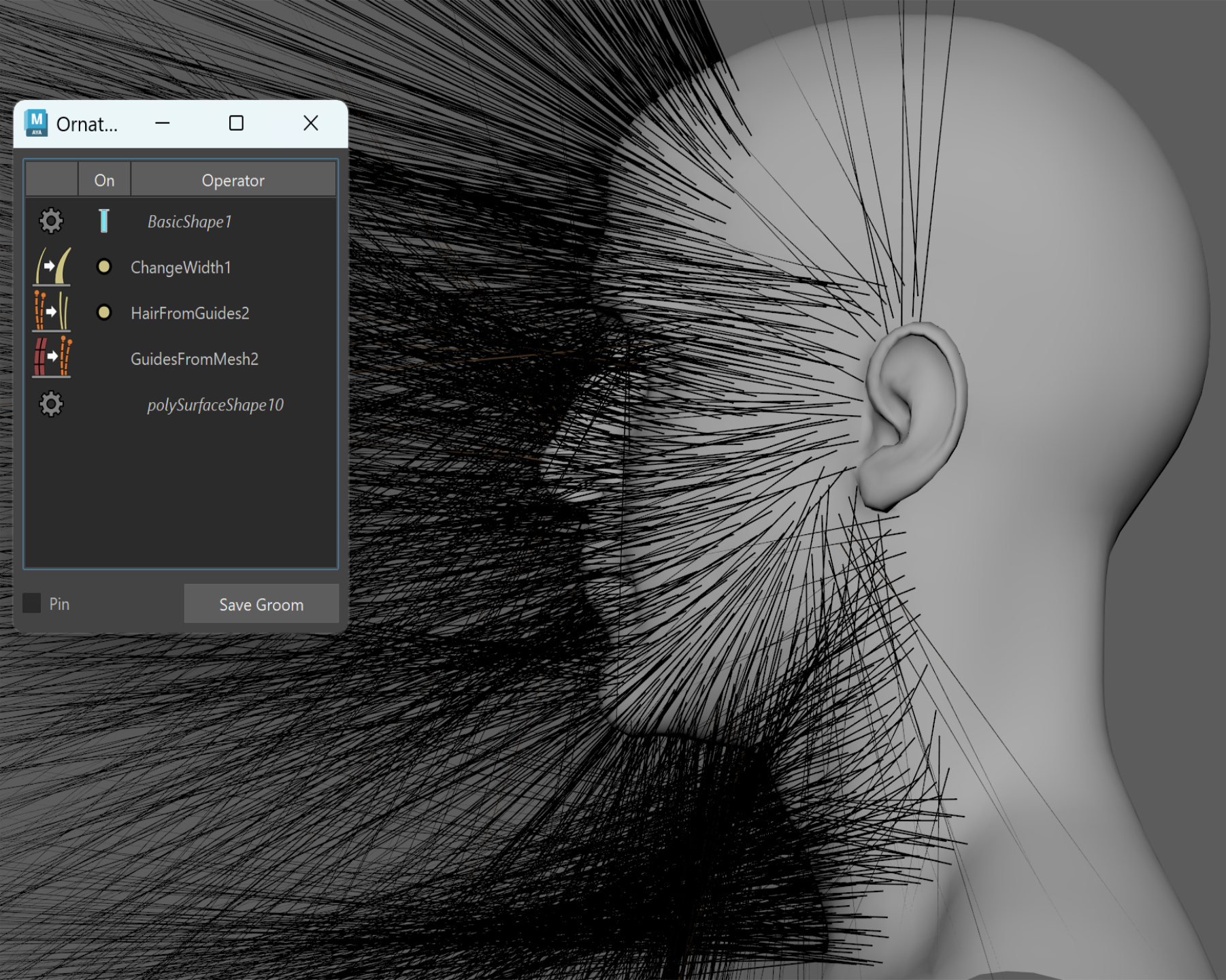
Setting Up Guides from Mesh
Start with Guides from Mesh.
For this groom we can leave almost all of its settings at their defaults.
Set:
- Length:
6 - Length Randomness:
0
We deliberately disable the initial length randomization because we will later use a dedicated Length operator for this task.
Keeping individual responsibilities separated between operators makes the groom easier to understand and adjust later.
Defining the Beard Distribution
Hair from Guides
Hair from Guides uses the guides to interpolate the dense strands that form the visible beard.
Once again, most settings can remain at their defaults.
The first important property we will modify is Distribution Multiplier.
Painting the Distribution Map
The Distribution Multiplier can use a grayscale bitmap to define where strands are generated:
- White - generate strands.
- Black - do not generate strands.
You can paint this map in any application you prefer.
You can also use Maya's built-in painting tools directly from Ornatrix by pressing the paint icon next to the Distribution Multiplier slot.
For this particular map I recommend using a hard-edged brush and painting the unwanted areas with pure black.
Do not spend time trying to create very smooth gradients around the edges of the beard at this stage.
We will get much better control over those transitions later using the Length and Change Width operators.
The Distribution Map should primarily answer a simple question:
Where is beard hair allowed to exist?
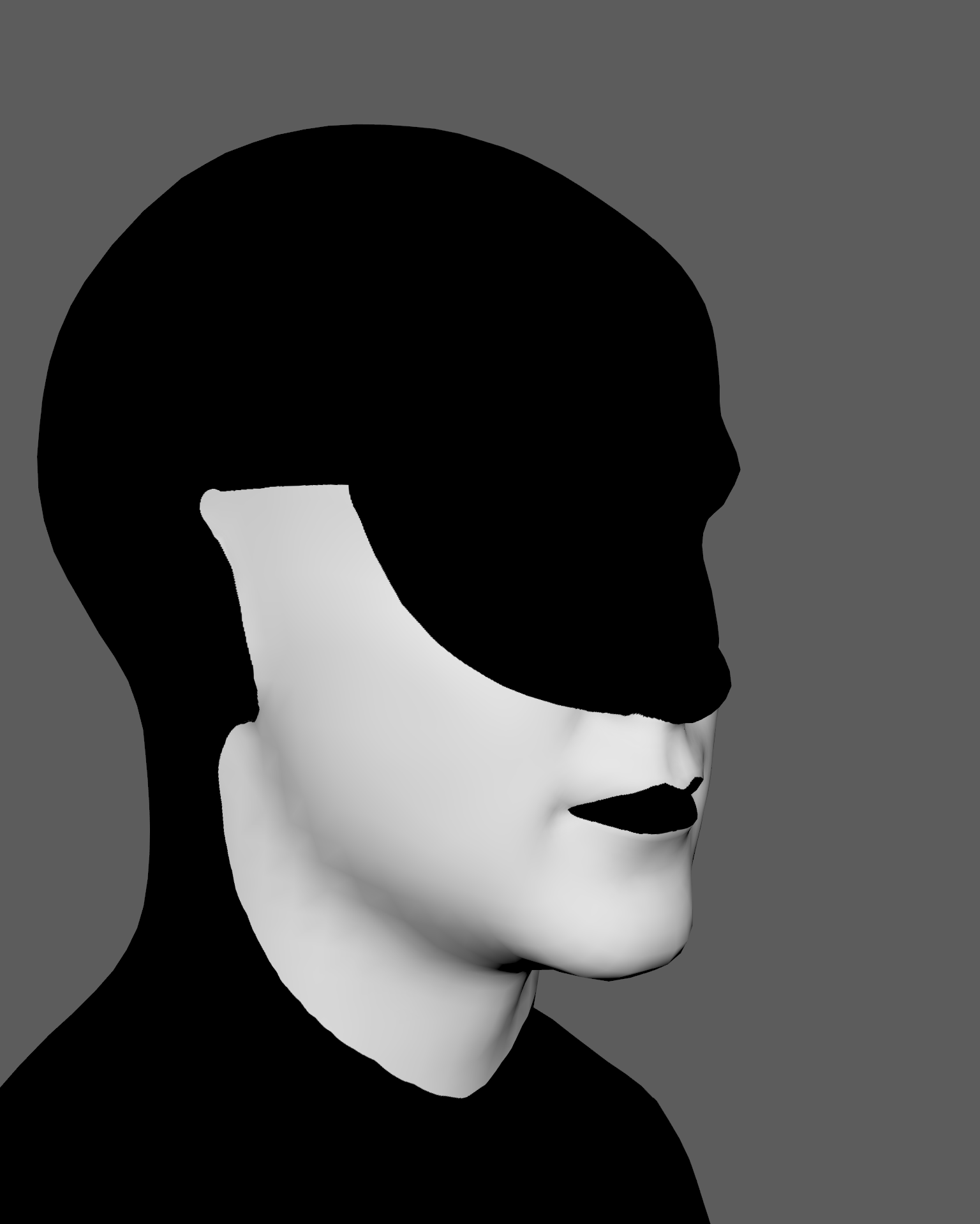
Connect this texture to Distribution Multiplier in Hair from Guides.
The groom should now only generate strands inside the painted beard region.
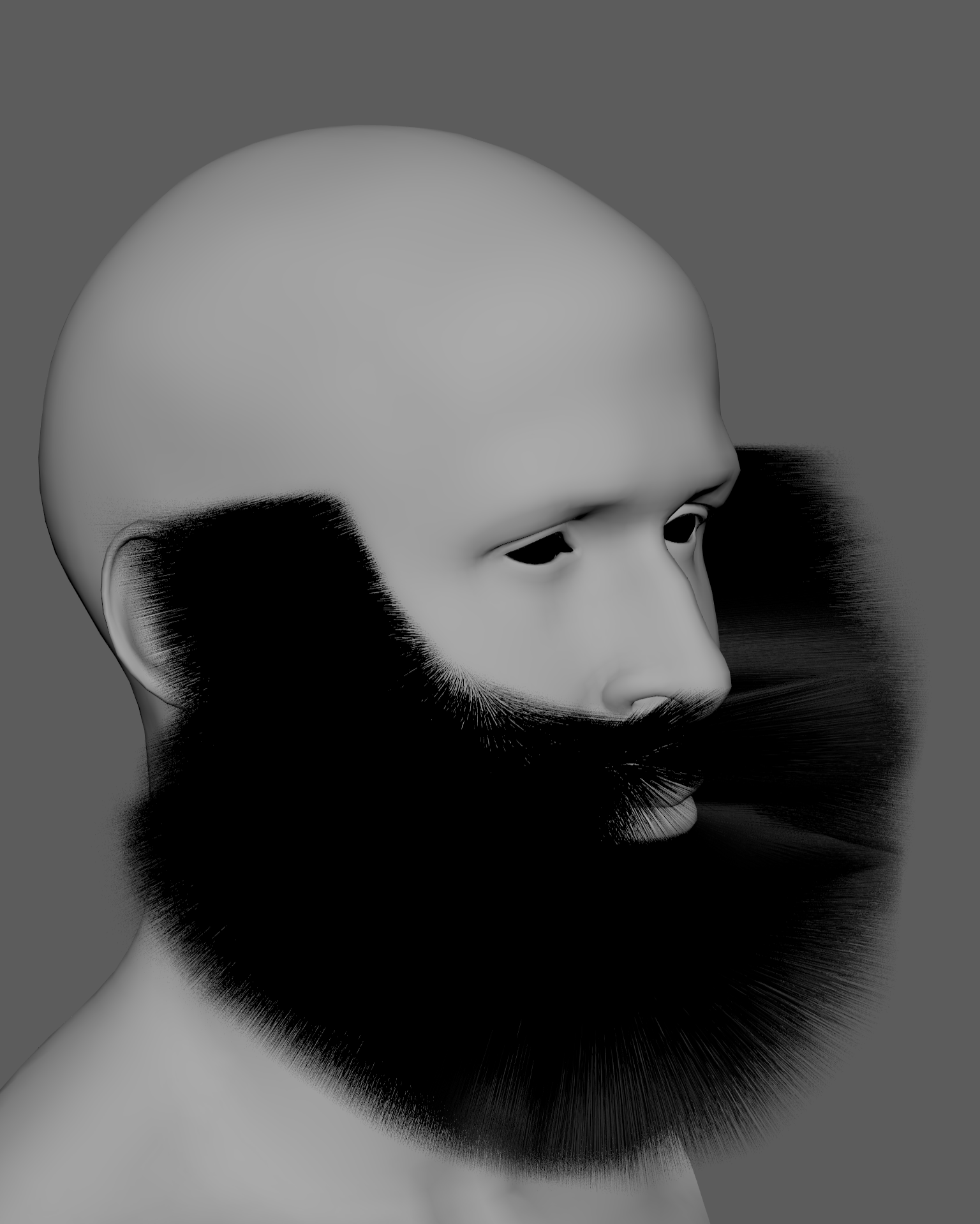
Setting the Hair Density
Use Render Count in Hair from Guides to define the overall density of the beard.
In this example we use approximately:
- Render Count:
150000
Do not interpret this value as the exact number of generated hairs. The Distribution Multiplier removes a considerable portion of the potential distribution, so the actual strand count can be significantly lower.
For demonstration purposes I also use:
- Viewport Count Fraction:
1.0
This displays 100% of the viewport strands and makes it easier to evaluate the full density without having to render.
If you want to inspect the actual number of generated strands, temporarily add an Edit Guides operator directly above Hair from Guides. With Viewport Count Fraction set to 1.0, Edit Guides displays the total strand count under its selection modes.
This is useful when you need an exact count instead of estimating density from the Hair from Guides Render Count value.
For heavier production grooms you will usually want to reduce the viewport fraction again for better interactive performance.
Defining Strand Length
Now we will establish one of the most important properties of the groom: strand length.
Add a Length operator to the stack.
For this example set:
- Value:
0.8
This value acts as a multiplier over the current strand length.
You can also increase Randomize if you want some initial length variation between individual strands.
Solve the Haircut Before Styling the Hair
A useful grooming principle is:
Define the haircut before concentrating on the hairstyle.
For facial hair, strand length is one of the main properties defining the groom.
If the length distribution is correct, the strands can later be combed, curled, clumped, or otherwise deformed in many different ways while still preserving a believable overall beard.
If the underlying length distribution is wrong, however, additional sculpting usually cannot fully compensate for it.
For this reason we will define the beard length before spending time manually shaping the strands.
Painting the Length Map
The Value Multiplier parameter in the Length operator allows us to control strand length using a grayscale bitmap.
Unlike the Distribution Map, this is exactly where smooth gradients become useful.
The map values work as multipliers:
- White / 1.0 - keeps the current strand length.
- Gray - proportionally reduces the strand length.
- Black / 0.0 - reduces strand length to zero.
This allows us to create natural transitions between short facial hair and longer regions of the beard.
It also allows us to soften the hard boundaries created by the Distribution Map.
Using your preferred painting application, paint a Length Map based on your visual references.
Look carefully at how real facial hair changes length across different regions of the face. Paint gradual transitions between shorter and longer areas rather than treating the beard as a single uniform length.
This is the map used in this example:
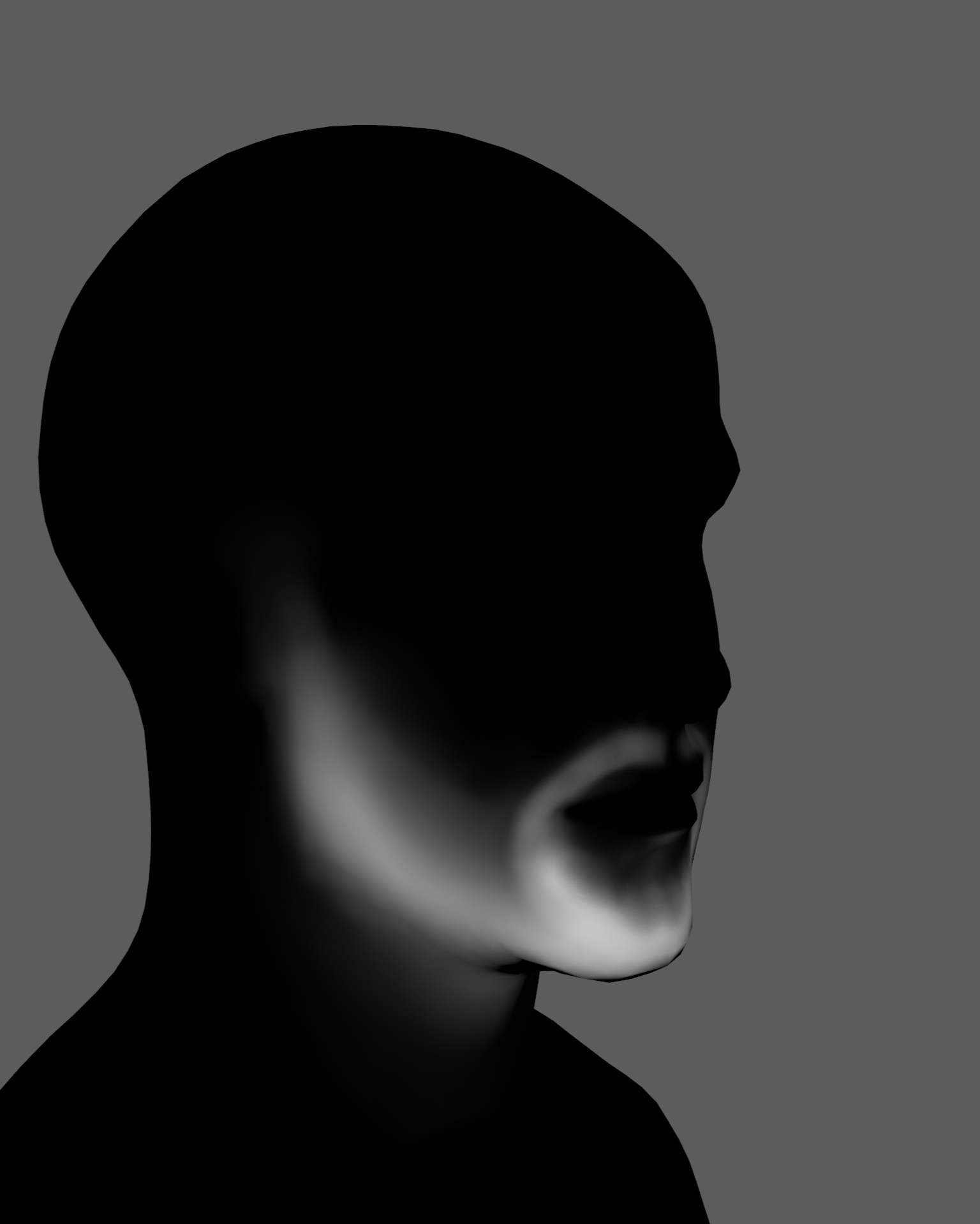
Connect the map to Value Multiplier in the Length operator.
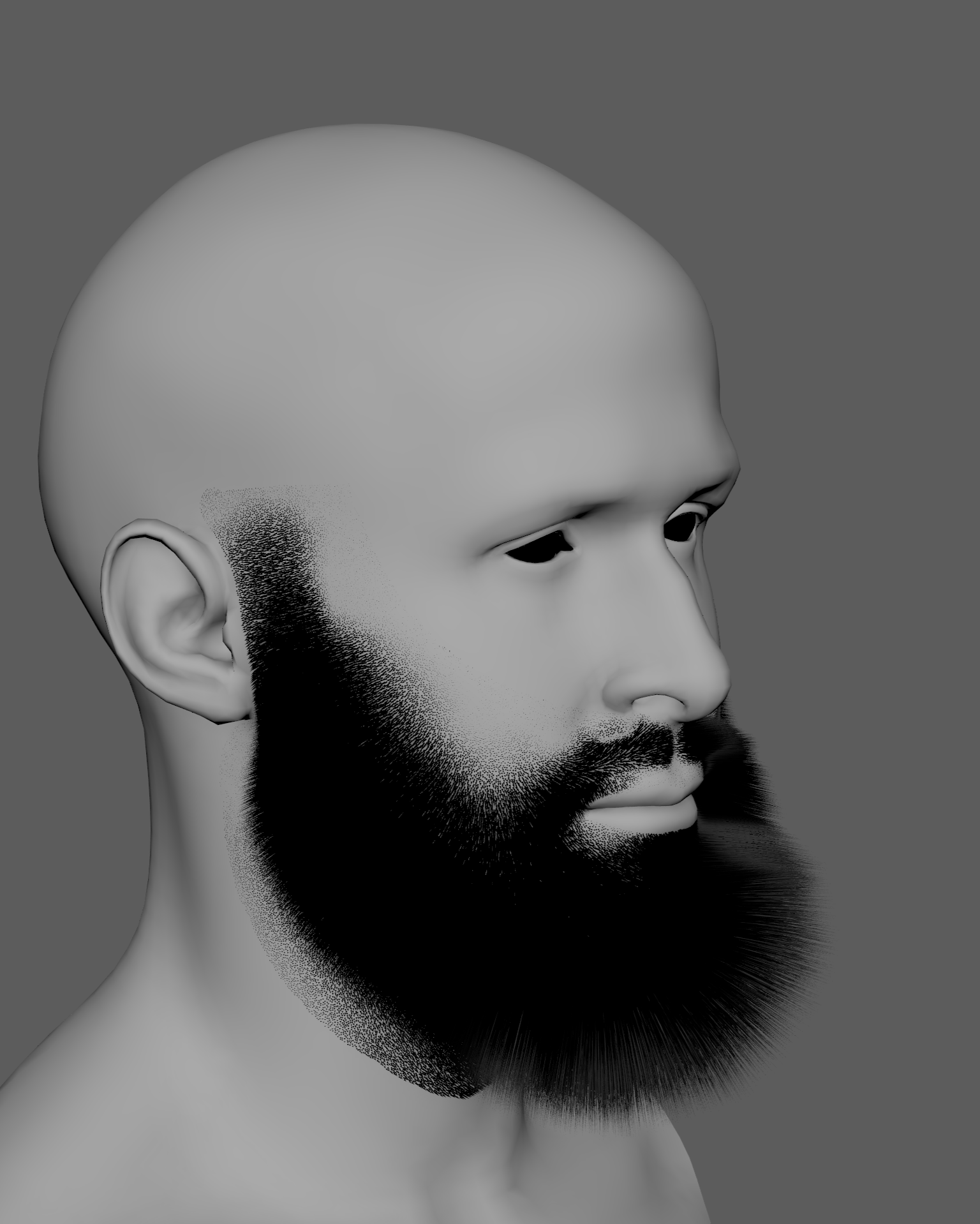
Notice that the Distribution Map extends slightly beyond the final visible beard boundary. This was intentional.
The extra distribution gives the Length Map enough room to gradually reduce the strand length near the border instead of forcing the beard to stop abruptly.
Even without combing or sculpting the strands yet, the result should already begin to resemble a believable beard.
At this point we could already start adding secondary details.
However, we still can see the border of the hair distribution; we will fix this with a width multiplier map.
Defining Strand Width
The initial groom already contains a Change Width operator.
We can use it to improve the transition between the beard and the skin even further.
Reusing the Length Map
One simple option is to reuse the Length Map as the Width Multiplier in Change Width.
The principle is similar to the Length operator:
- Bright areas produce thicker strands.
- Darker areas produce thinner strands.
This means that the shorter hairs around the edges of the beard will also become progressively thinner.
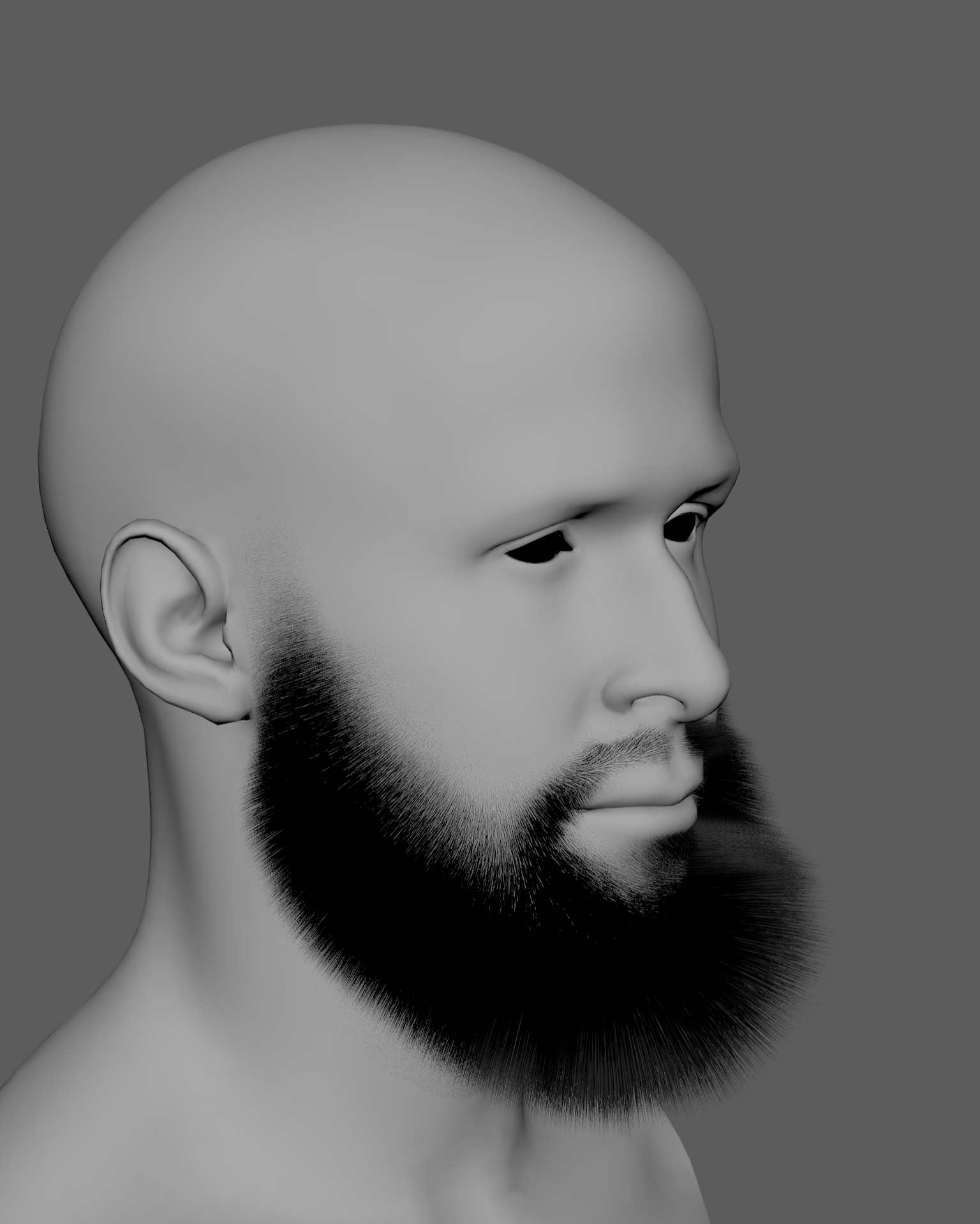
Now, the borders of the distribution area are nicely blended with the skin.
Using a Dedicated Width Map
For greater control, we can paint a separate Width Map.
A dedicated map allows us to make the beard boundary even softer without changing the length distribution we already established.
Areas with a Width Multiplier of 0 produce strands with zero width. In practice these strands become invisible even though they still exist in the underlying Hair from Guides distribution.
This is useful because we do not need to remove those strands from Hair from Guides. Instead, we can smoothly fade them visually into the skin.
The main advantage is the ability to create very precise transitions between visible facial hair and the surrounding skin.
This is the Width Map used here:
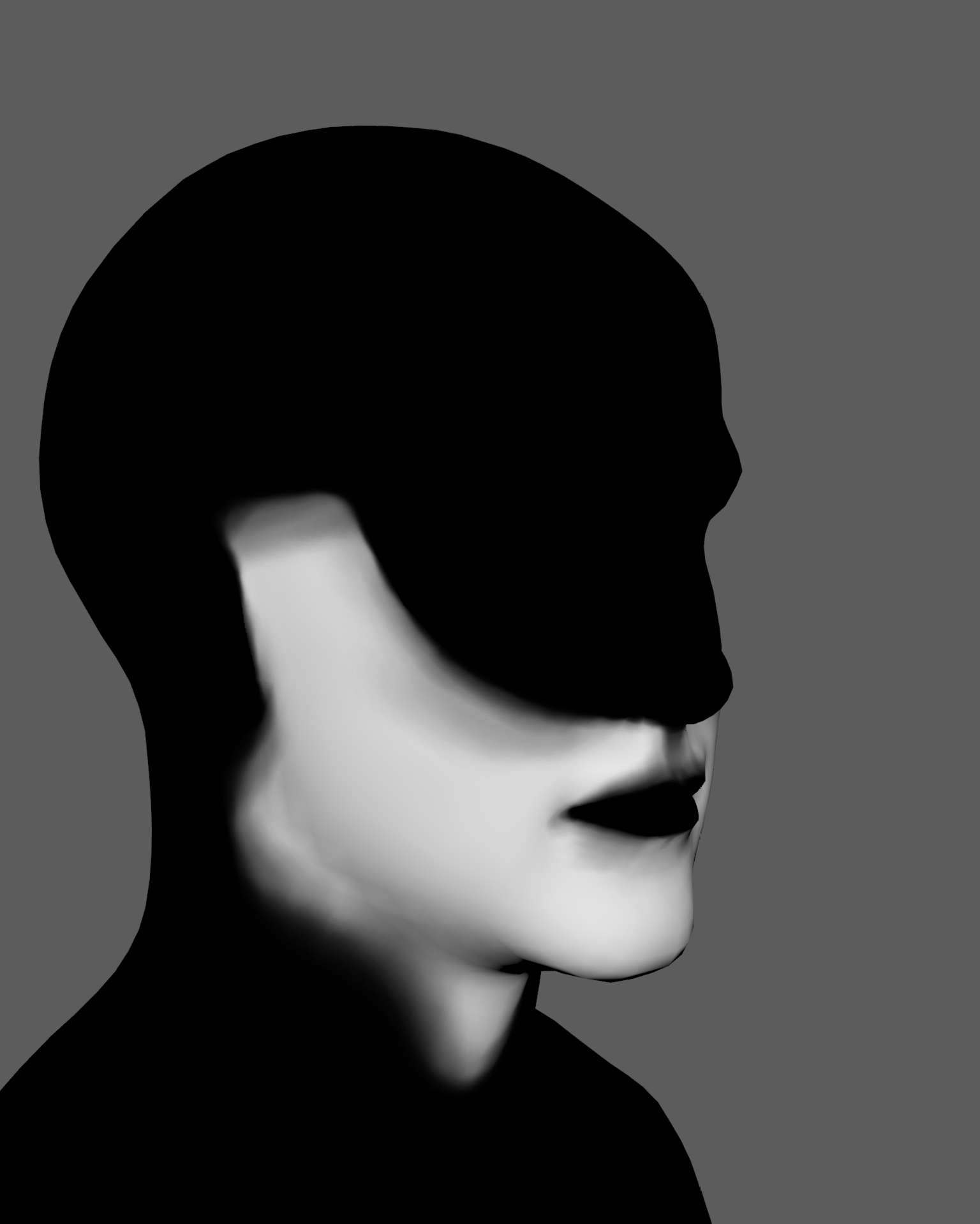
And this is the result after connecting it to Width Multiplier in Change Width:
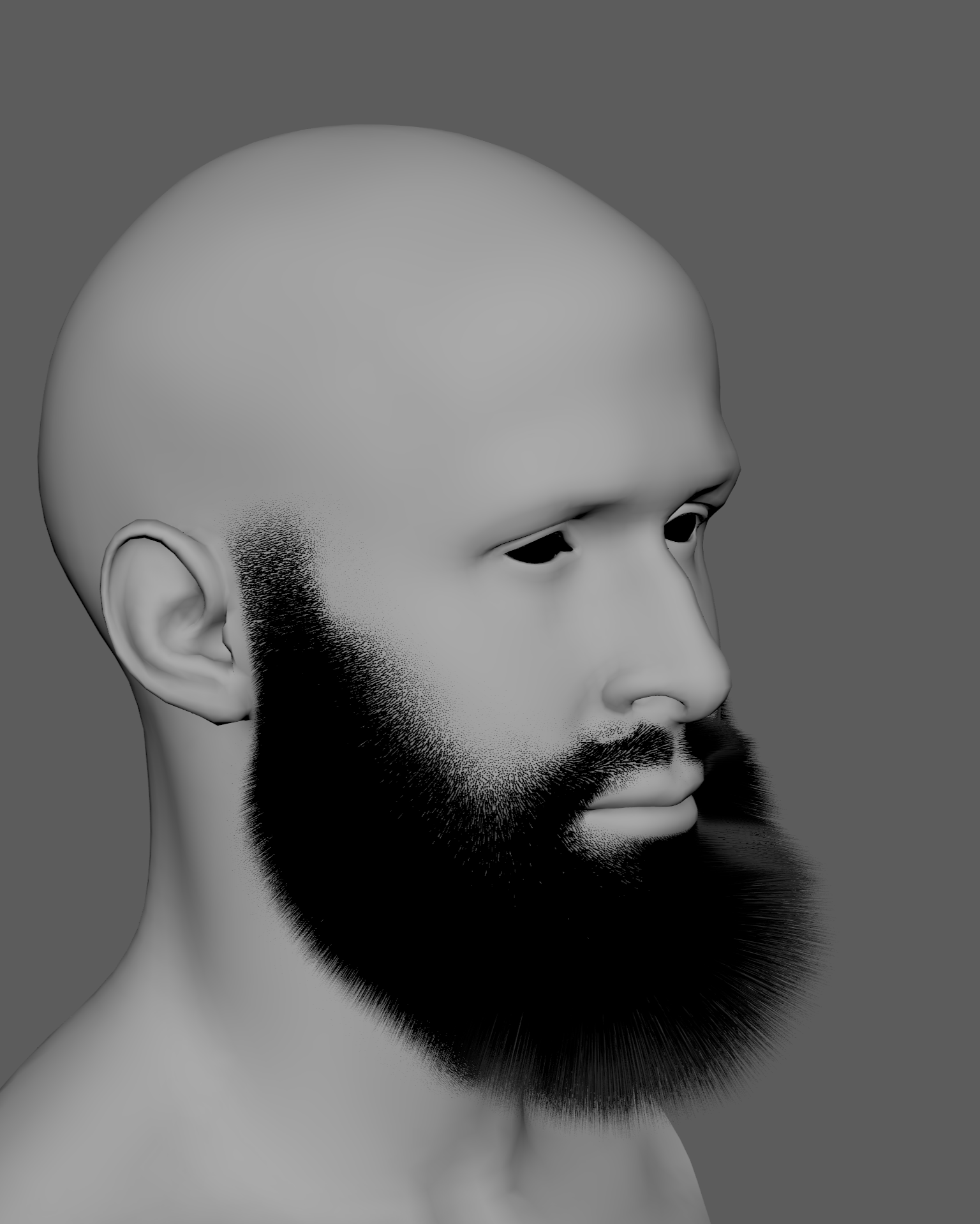
At this stage we are already getting a fairly convincing beard using primarily length and width gradient maps.
This is why establishing the strand lengths early is so important.
We have not manually sculpted the guides yet, but the basic haircut and its transition into the skin already provide most of the large-scale structure of the groom.
Adding Clumping
Before combing the beard we can continue adding procedural detail.
Add a Clump operator.
Modulating Clumping by Hair Length
Initially, connect the Length Map to the Amount Multiplier slot in the Clump operator.
This gives us a simple but useful behavior:
- Short hairs receive less clumping.
- Long hairs receive more clumping.
This generally produces a more natural result than applying the same amount of clumping uniformly across the whole beard.
Generating the Clumps
For Clump Generation Method, both Even and Random can work well.
Even is the current default, so it is a good starting point.
Increase Clump Count gradually and regenerate the clumps until their size and density match your visual reference.
For this example:
- Clump Count:
4000
After changing the value, regenerate the clumps and evaluate the result.
Do not choose the number only because it looks mathematically correct. The important part is the visual scale of the resulting clumps relative to the beard.
In this example we also modify the Clump Amount Ramp so the clumps open slightly toward their tips.
This is the immediate result. Note that this reveals the edges of the distribution area again; this is normal, as even the short strands clump together, creating that contrast. We will address that in the next step.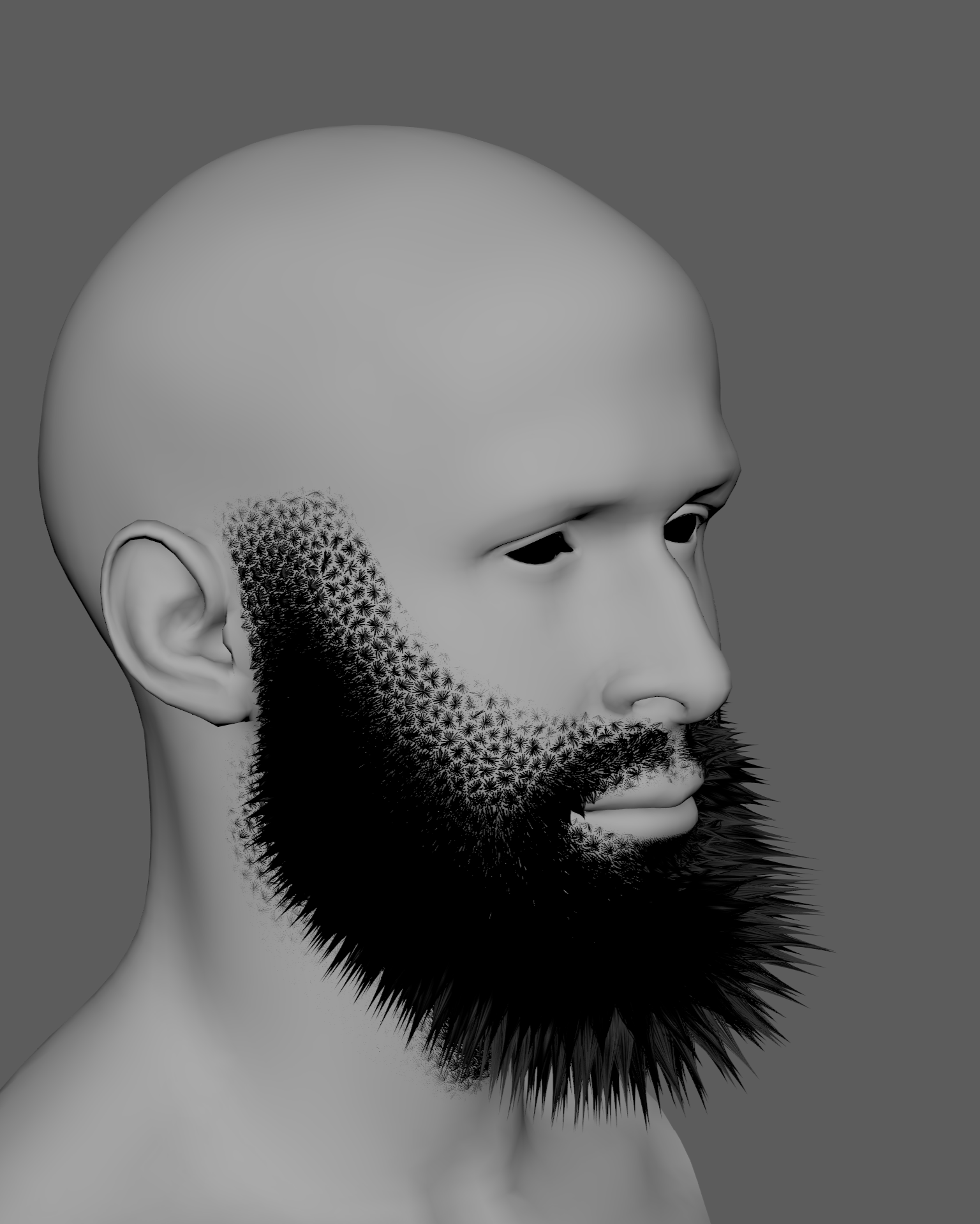
Now we connect the Length Map to the Amount Multiplier slot on the Clump operator and get this result: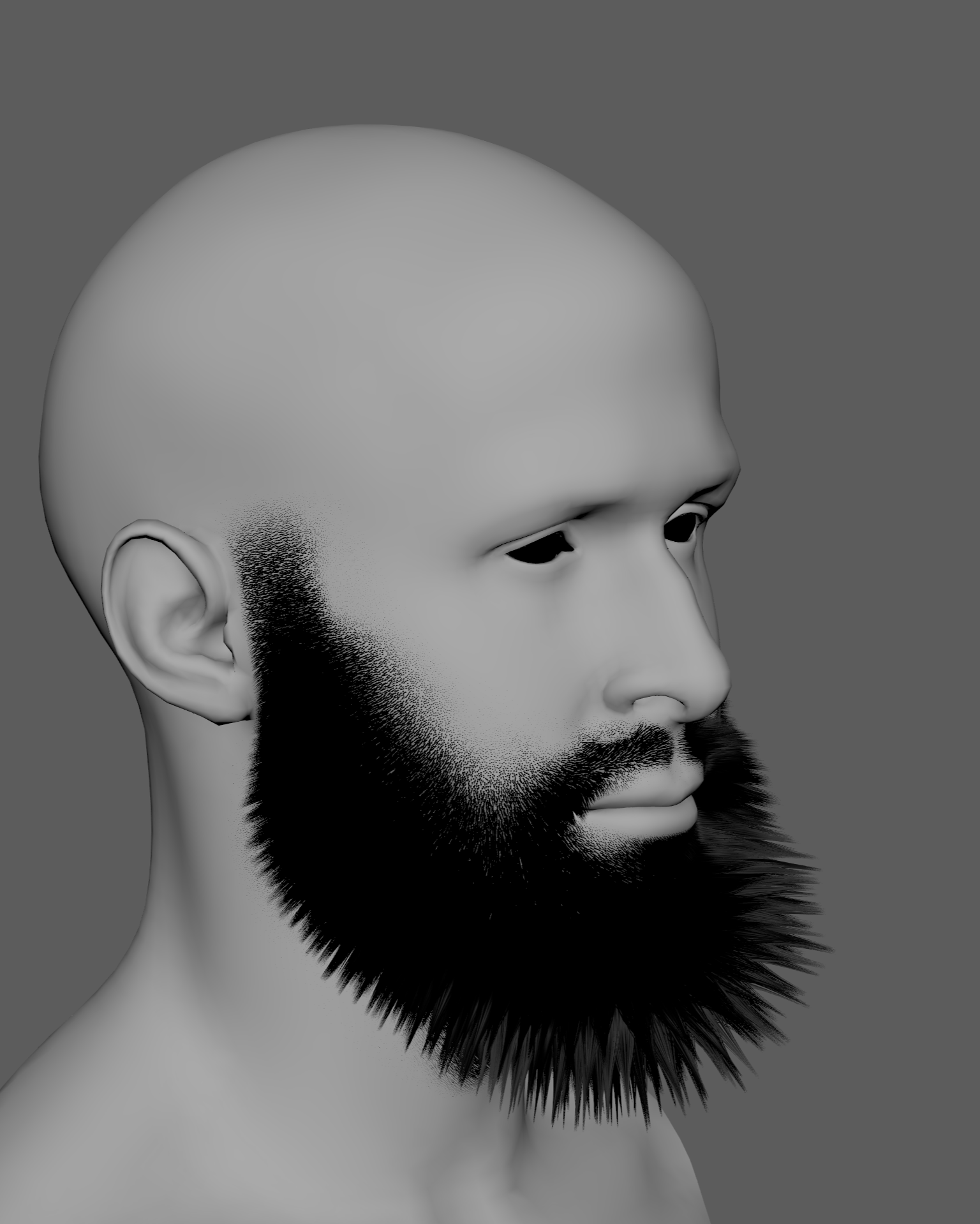
You will notice that this gradually reduces the intensity of the clumping from the longest strands to the shortest ones. This creates a much more natural effect and eliminates any harsh edges in the area where the product is applied.
Notice also how the maps we created for the basic groom are already useful for controlling additional effects.
Using Strand Channels
Bitmap maps are not the only way to modulate Ornatrix operators.
Ornatrix also supports Strand Channels.
A Strand Channel can store information per strand or per strand vertex and can then be reused by other operators in the stack.
This makes channels especially useful for procedural relationships between different parts of the groom.
See the Generate Strand Data documentation for additional examples.
Generating a Strand Length Channel
We already defined the strand lengths using our Length operator and Length Map.
We can now convert the resulting length of each strand into reusable procedural data.
Add a Generate Strand Data operator above the Length operator.
Set its Generation Method to:
- Strand Length
Create a new Strand Channel and give it a meaningful name, for example, Length.
Generate Strand Data will evaluate the current length of each strand and store that information in the channel.
Because the operator is located after the Length operator in the evaluation stack, it stores the final length produced by our Length settings and Length Map.
The channel then continues through the rest of the operator stack and can be selected by operators above it.
This means we no longer need to reconnect the original Length Map everywhere simply because we want an effect to depend on strand length.
Why Use a Channel?
There are several advantages.
First, the channel now represents the actual resulting strand length, not just the texture that originally helped create it.
Second, the same channel can be reused by many operators.
Third, channels can be combined with other data through expressions.
For example, we could combine:
- Strand length
- Random values
- Another texture map
- Distance to an object
- Other Strand Channels
The channel can also be used elsewhere in the pipeline. For example, the shading network could use strand length to modify hair color.
Improving the Clump Setup
Return to the Clump operator.
Disconnect the Length Map from Amount Multiplier.
Instead, select our new Length channel in Amount Channel.
We still get clumping based on strand length, but the Amount Multiplier slot is now free for something else.
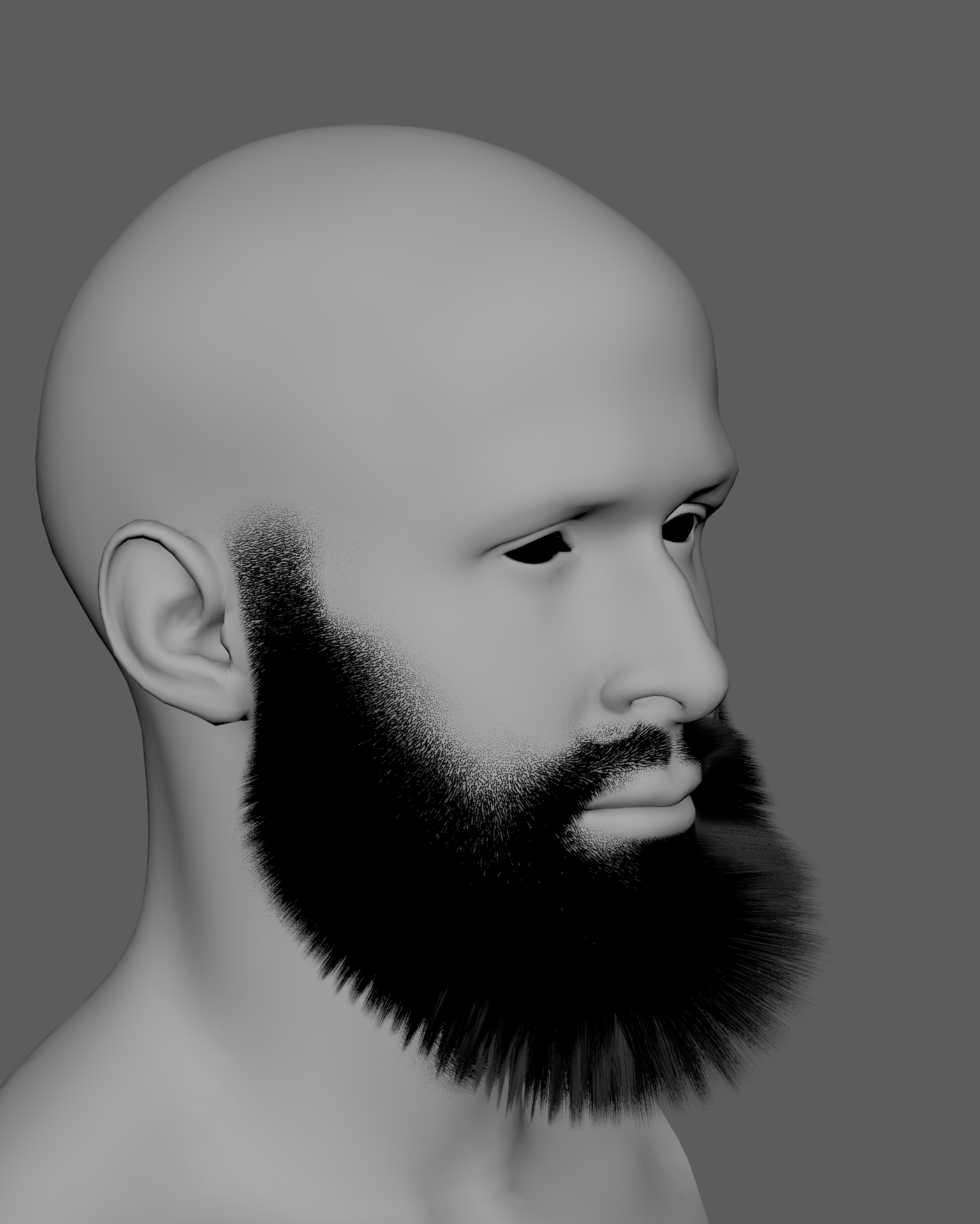
For this groom, we connect a Noise texture to Amount Multiplier.
We now have two independent sources controlling the effect:
- Length Channel - controls clumping according to strand length.
- Noise Multiplier - introduces spatial variation across the beard.
This gives us a much less uniform result.
Adding Strand Detail
Next we will introduce some Curl.
Before doing that, however, we need enough strand points for the Curl operator to deform the strands smoothly.
The initial guides were created using 10 points. That is sufficient for many basic operations, but it does not provide enough geometric detail for stronger local deformation.
Instead of going back to Guides from Mesh and increasing the guide resolution globally, add a Detail operator immediately before the Curl operation.
This example uses:
- Viewport Point Count:
20 - Render Point Count:
20
This adds additional strand detail only where it becomes necessary in the stack.
We can optimize this further using the Length Strand Channel we created earlier. Assign it as the Point Count Channel in the Detail operator so that strand resolution is modulated by strand length.
Short strands generally require fewer points to represent their shape accurately, while longer strands need more points for smooth deformation. Using the Length Channel therefore reduces unnecessary points on short facial hairs while preserving enough detail on the longer parts of the beard.
This can provide a significant optimization in dense grooms, where adding the maximum point count uniformly to every strand would otherwise create a large amount of unnecessary geometry.
This technique is also covered in the Groom Optimization guide.
Using Detail this way is generally more efficient and also keeps the earlier parts of the operator stack simpler.
Adding Curl
Add a Curl operator after Detail.
For this beard we only want a subtle effect. The purpose is not to create visibly curly hair, but to break the perfect shapes created by the clumps.
For this example I use approximately:
- Magnitude:
0.1 - Phase:
-0.103
These values are only a starting point. Adjust Curl according to the type of beard and your reference.
I also use the Length Strand Channel to modulate the relevant Curl parameters.
This causes shorter hairs to receive less deformation while longer strands can develop more visible curl.
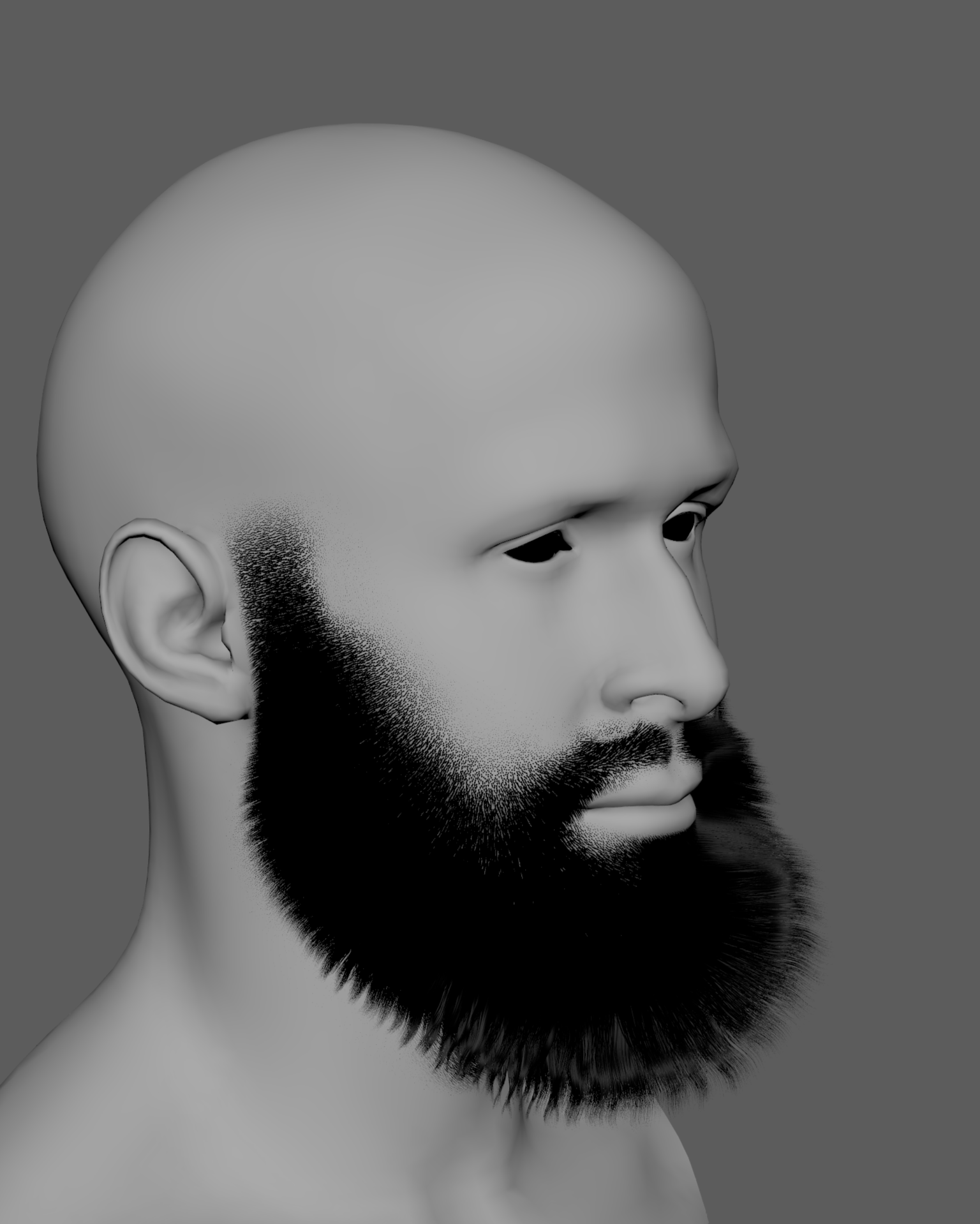
The clumps should now feel less mechanically perfect while still preserving the overall structure we established earlier.
Adding Frizz
We can continue breaking up the groom using several layers of Frizz.
Using multiple Frizz operators instead of trying to produce everything with a single one gives us independent control over different scales and types of variation.
Frizz 1 - Volume
Add the first Frizz operator above Curl.
We will use this operator primarily to introduce some volume.
Set:
- Scale:
0 - Outliers:
0
Then slowly increase Amount until the beard gains the desired amount of volume.
Keep the value relatively low.
Select our Length channel as the Amount Channel so that short strands receive less frizz than long strands.
Frizz 2 - Larger Scale Variation
Add another Frizz operator above the first one.
This time keep Outliers disabled and introduce larger-scale variation.
For this example:
- Amount:
1.905 - Scale:
2.177 - Outliers:
0 - Amount Channel:
Length
This adds a stronger spatial variation to the beard while the Length Channel continues reducing the effect naturally on shorter hairs.
Frizz 3 - Outliers
Finally, add one more Frizz operator dedicated primarily to Outliers.
Outliers are particularly useful for facial hair because perfectly contained silhouettes tend to look artificial.
A small number of hairs escaping from the main beard shape helps break the silhouette and adds another layer of realism.
For this operator, keep the regular Amount at 0 so that the main Frizz effect does not interfere with the outlier controls.
A small Scale value can still be used if you want the outlier strands themselves to bend slightly.
For this example the Outlier settings include:
- Friction:
0.1 - Frizz Amount:
5.0
Adjust the amount of outliers according to your reference. They should add imperfection without overwhelming the main groom.
This is the result after applying the three layers of frizz: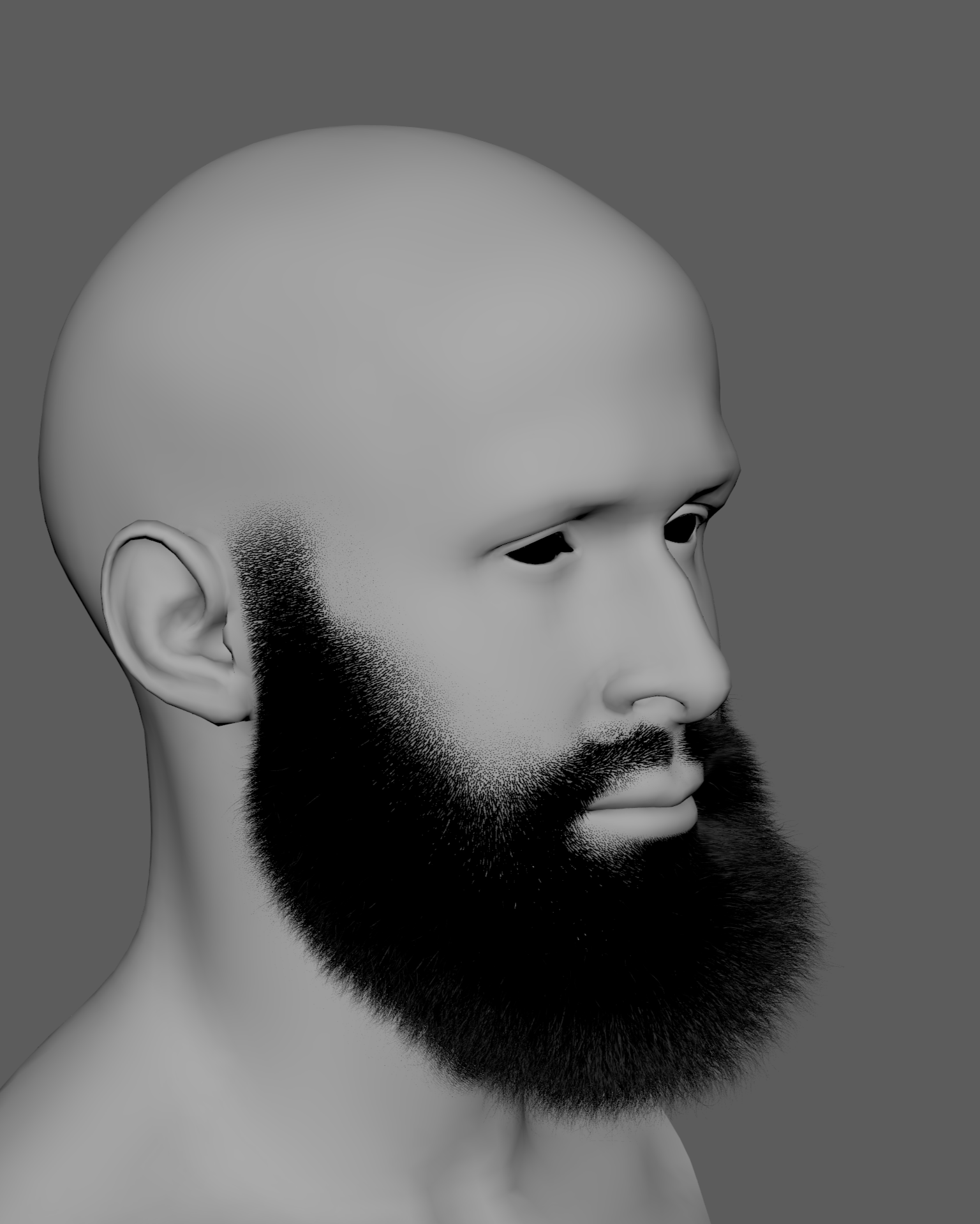
Generating an Outlier Channel
The Frizz operator also provides the option to Generate Outlier Channel.
When enabled, Ornatrix creates a Strand Channel identifying the strands selected as outliers.
This is useful if you want to apply additional operations exclusively to those hairs.
For example, you could use the channel to:
- Apply additional Curl only to outliers.
- Change their width.
- Treat outliers differently inside the shading network.
This is another example of how Strand Channels can connect different parts of a procedural groom.
Current Result
At this point the beard is already quite developed.
We have created:
- Controlled hair distribution.
- Gradual strand length.
- Gradual strand width.
- Length-dependent clumping.
- Procedural variation using Noise.
- Curl.
- Multiple layers of Frizz.
Depending on the desired style, the groom could potentially be left close to this state.
However, we will now look at how the overall flow of the beard can be controlled procedurally using Surface Comb.
Grooming with Surface Comb
We could use Edit Guides and Ornatrix grooming brushes to manually sculpt the beard.
Instead, for this example we will use a more procedural approach with Surface Comb.
Surface Comb uses controls called Sinks to define the direction and shape of the strands across a surface.
You can think of the sinks as directional controls distributed across the character surface. Their influence is interpolated to create the overall flow of the groom.
Basic Surface Comb Workflow
The basic workflow is:
- Add a Surface Comb operator.
- Activate the Edit Sinks tool.
- Click and drag on the distribution surface to create sinks.
- Orient the sinks in the desired hair-flow direction.
- Adjust their parameters to control how strongly they affect the strands.
- Continue adding or adjusting sinks until the groom follows the desired flow.
| Using Sinks with the Surface Comb operator |
For a detailed explanation of its controls, see the Surface Comb Operator documentation.
Operator Order Matters
The position of an operator in the Ornatrix stack changes the result.
In this case I want to establish the overall beard direction before applying the Clump, Curl, and Frizz effects.
Therefore, place Surface Comb immediately above Hair from Guides and below the operators responsible for the secondary details.
This allows Surface Comb to shape the relatively clean interpolated strands first.
The later operators can then add their procedural imperfections on top of that groomed structure.
If Surface Comb were evaluated after those effects, it could partially reshape or suppress details we already created.
This is not necessarily wrong.
For another groom you may deliberately want Surface Comb in a different position.
One of the advantages of the Ornatrix operator stack is that operators can be moved up and down at any time, allowing you to compare different evaluation orders.
Styling the Beard
While working on Surface Comb, I temporarily disable the operators above it.
This has two advantages:
- The basic effect of Surface Comb is much easier to see.
- The groom evaluates faster while editing sinks.
For this example I only need a relatively small number of sinks.
I also set:
- Maximum Bend Value:
0.2
This limits the amount of bending introduced by Surface Comb.
Use Mirror while creating the sinks so you do not need to manually build equivalent controls on both sides of the face.
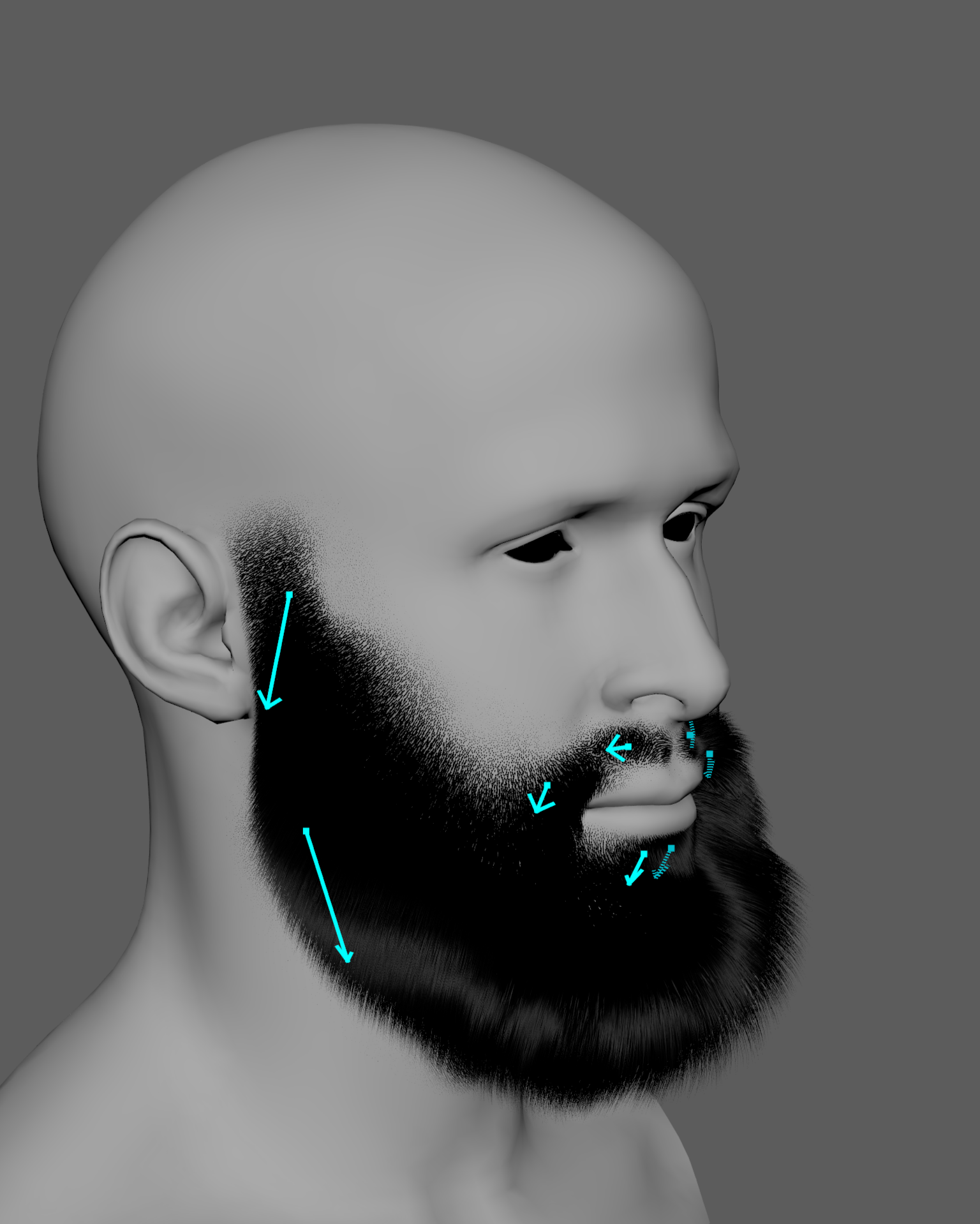
Continue adjusting the position, direction, and settings of the sinks until the beard follows the desired overall flow.
Then re-enable the remaining operators and evaluate the complete groom.
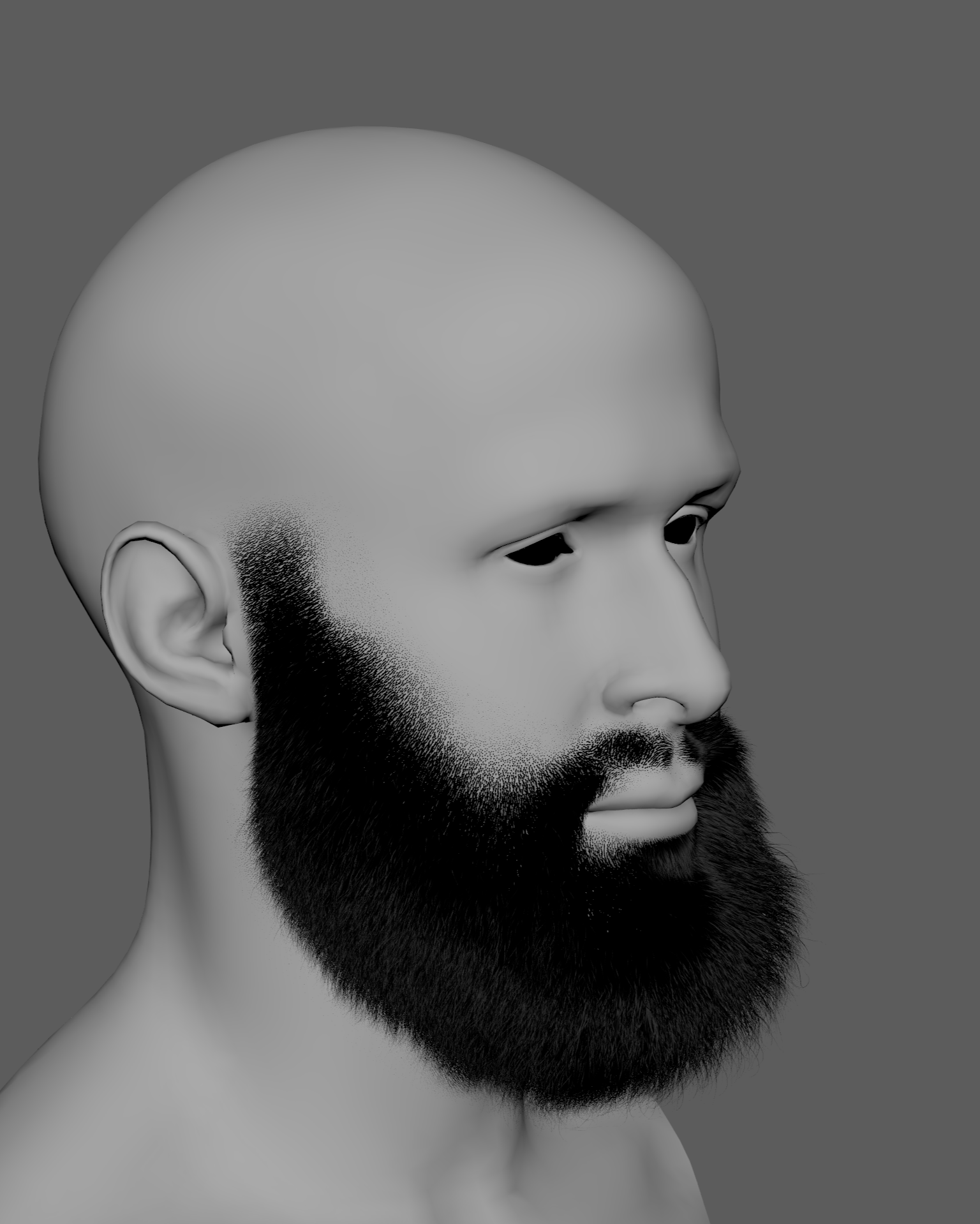
Iterating Procedurally
At this point almost the entire groom is procedural.
The primary hand-authored inputs are the texture maps.
This makes experimentation relatively inexpensive.
At any time we can return to the:
- Distribution Map
- Length Map
- Width Map
and change the shape of the beard without rebuilding the rest of the operator stack.
Because the Length Strand Channel is generated from the resulting strand lengths, it also updates automatically when the Length Map changes.
The operators using that channel - such as Clump, Curl, and Frizz - will therefore adapt to the new beard automatically.
Creating Beard Variations
For example, the following variations were created by changing the maps without modifying the main operator settings:
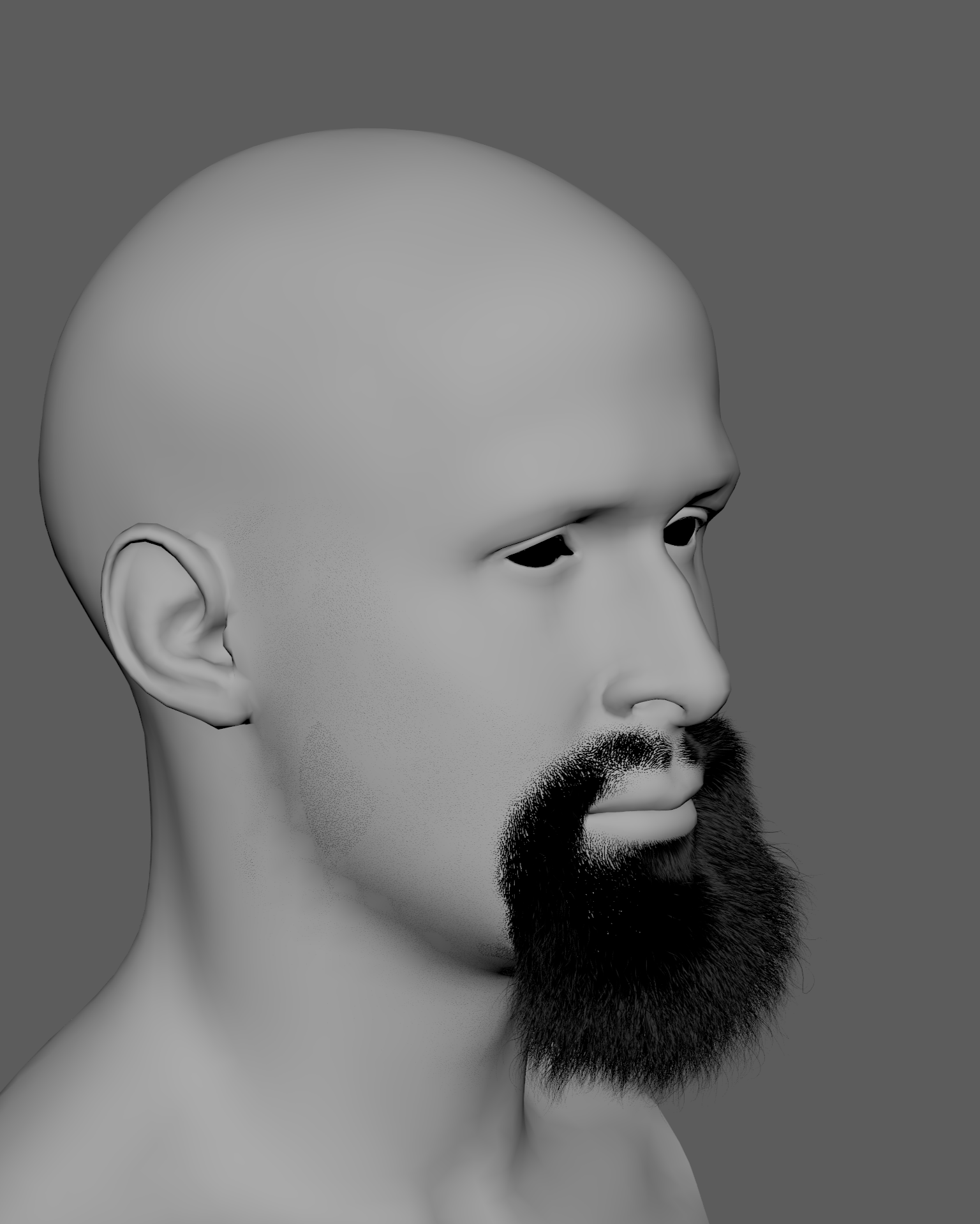
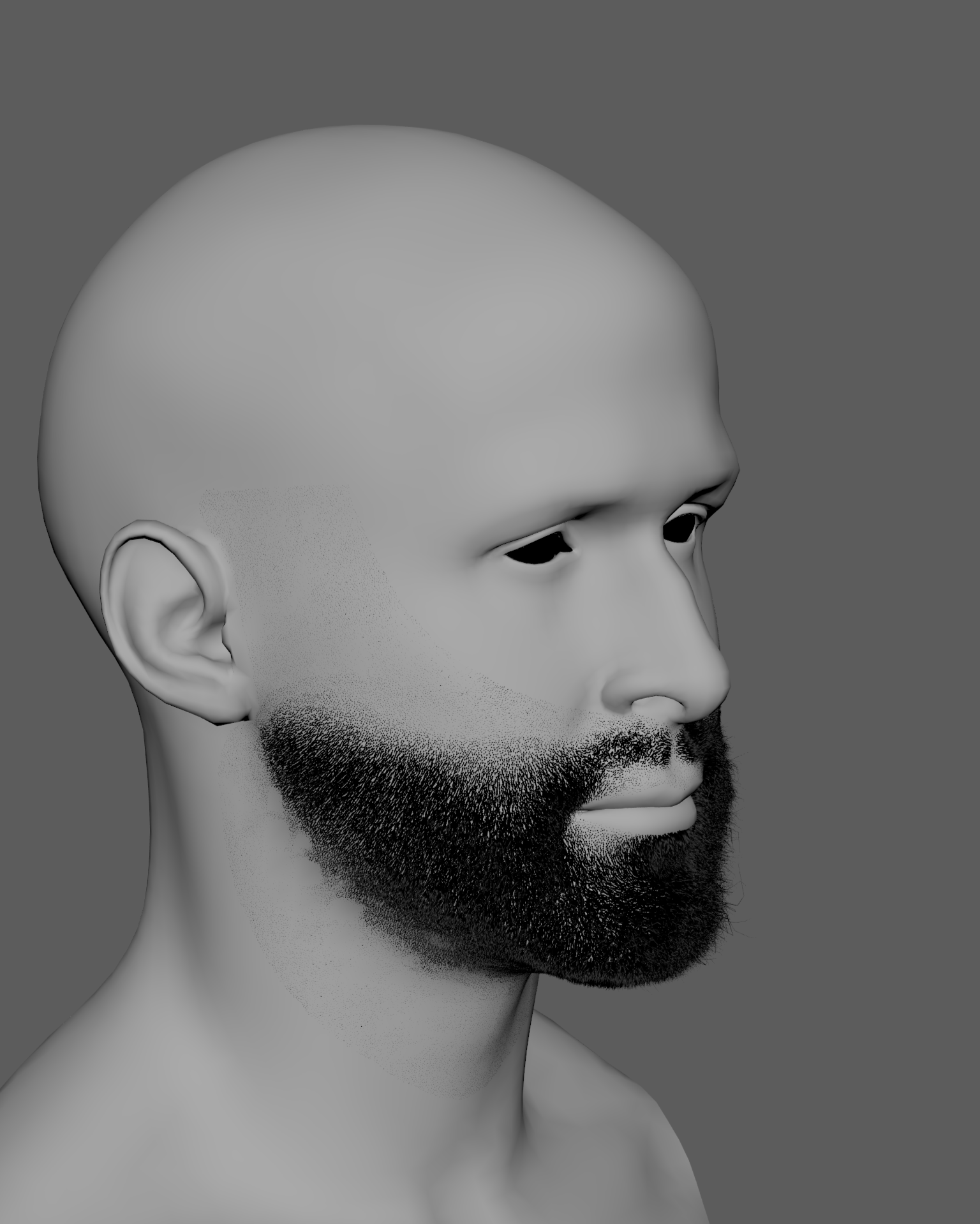
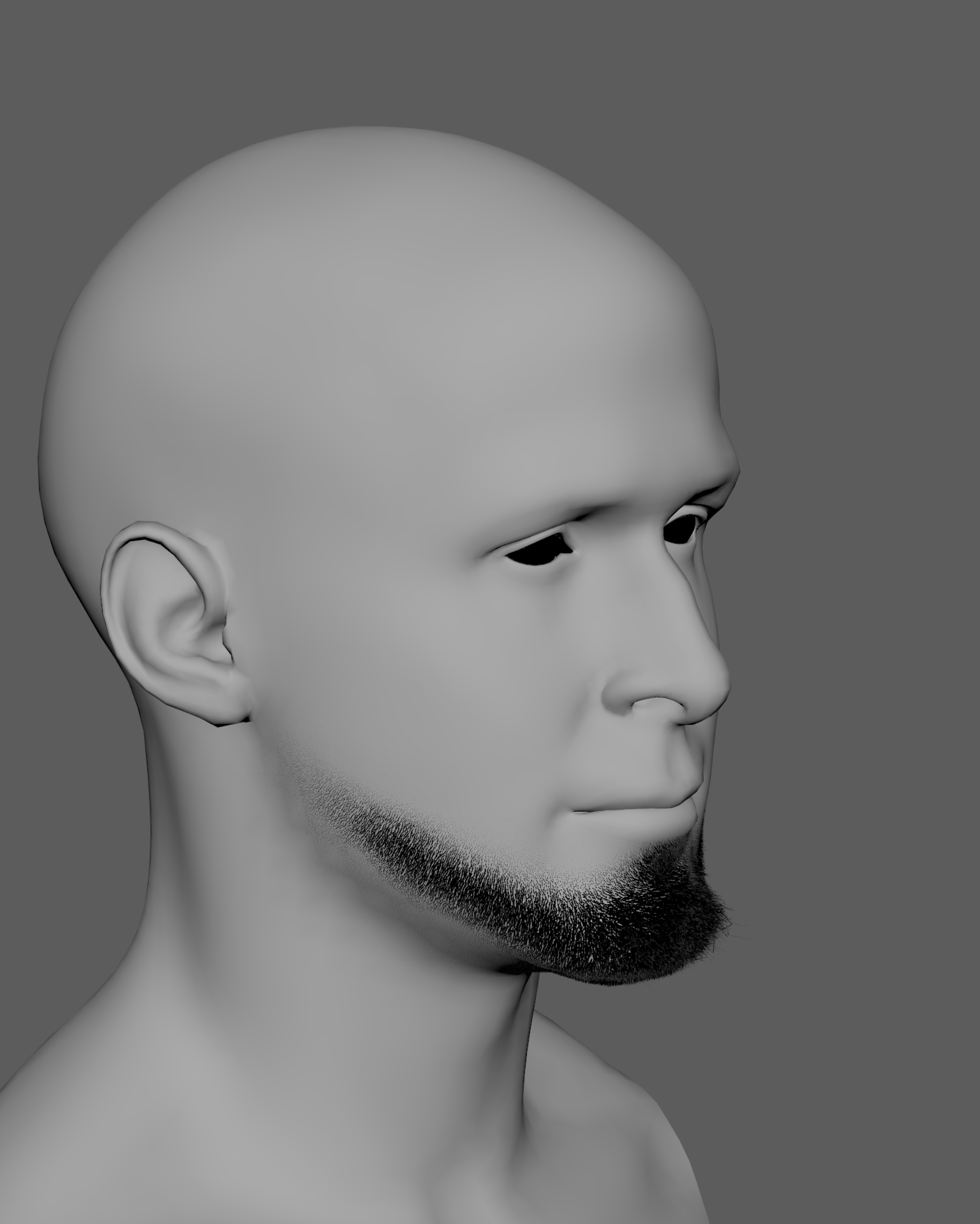
This is one of the main advantages of separating the groom into procedural layers.
Distribution defines where the beard exists.
Length defines the cut.
Width controls how the beard blends into the skin.
The remaining operators define how that underlying structure is styled and detailed.
By solving those fundamental properties first, we can make large artistic changes without having to rebuild or manually resculpt the entire groom.
Creating the Eyebrows
The eyebrow groom follows essentially the same workflow we used for the beard.
For the eyebrows, we use a small distribution mesh created by extracting the polygons covering the eyebrow region from the character's face.
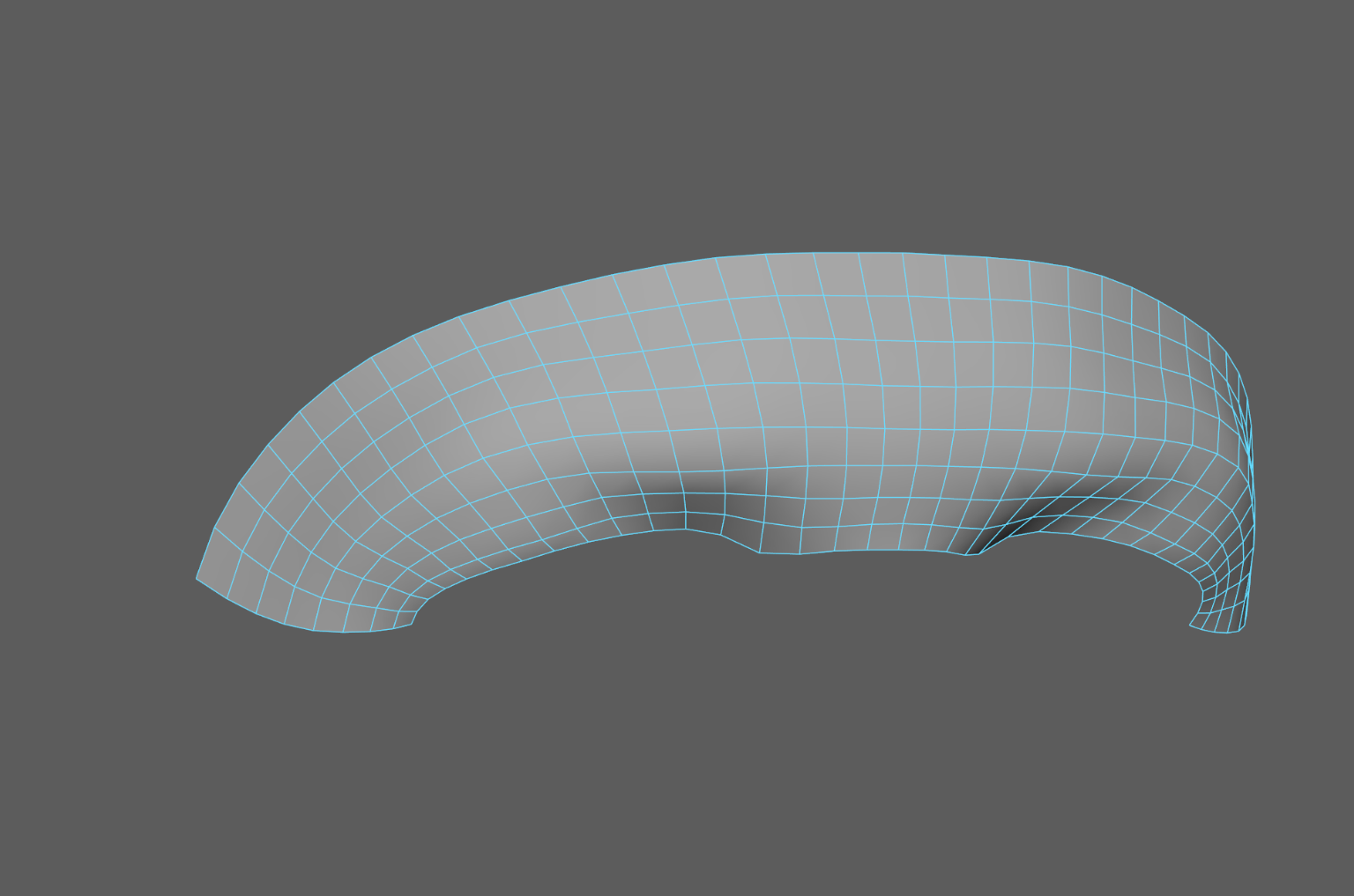
With this distribution mesh selected, create a new Ornatrix groom using Add Hair to Selection.
See "Creating the Initial Groom":#Creating-the-Initial-Groom for the basic setup.
Using a dedicated extracted surface keeps the eyebrow groom independent from the main character mesh while giving us a clean and focused area for hair generation.
Defining the Eyebrow Shape
As with the beard, we will first establish the basic shape of the groom before concentrating on styling.
Use the same three main multiplier maps:
- Distribution Map - defines where eyebrow strands can grow. See "Defining the Beard Distribution":#Defining-the-Beard-Distribution.
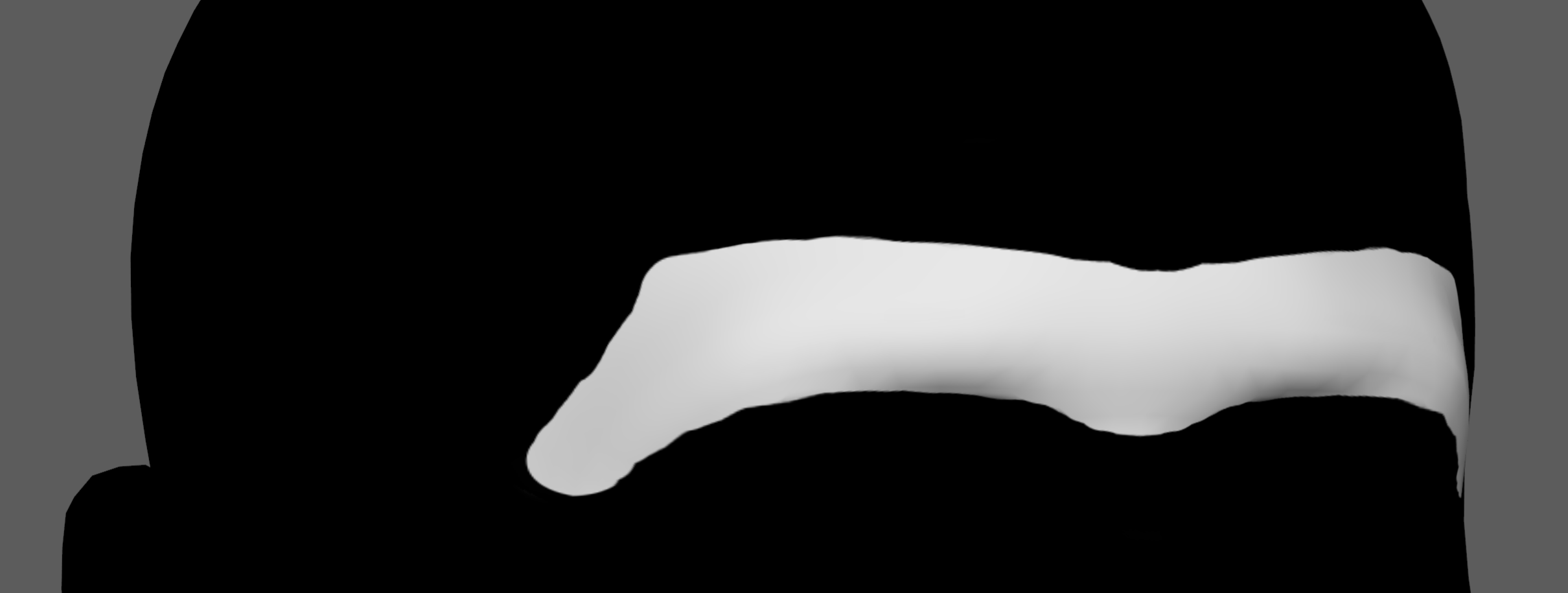
- Length Map - controls the eyebrow shape by varying strand length across the surface. See "Defining Strand Length":#Defining-Strand-Length.
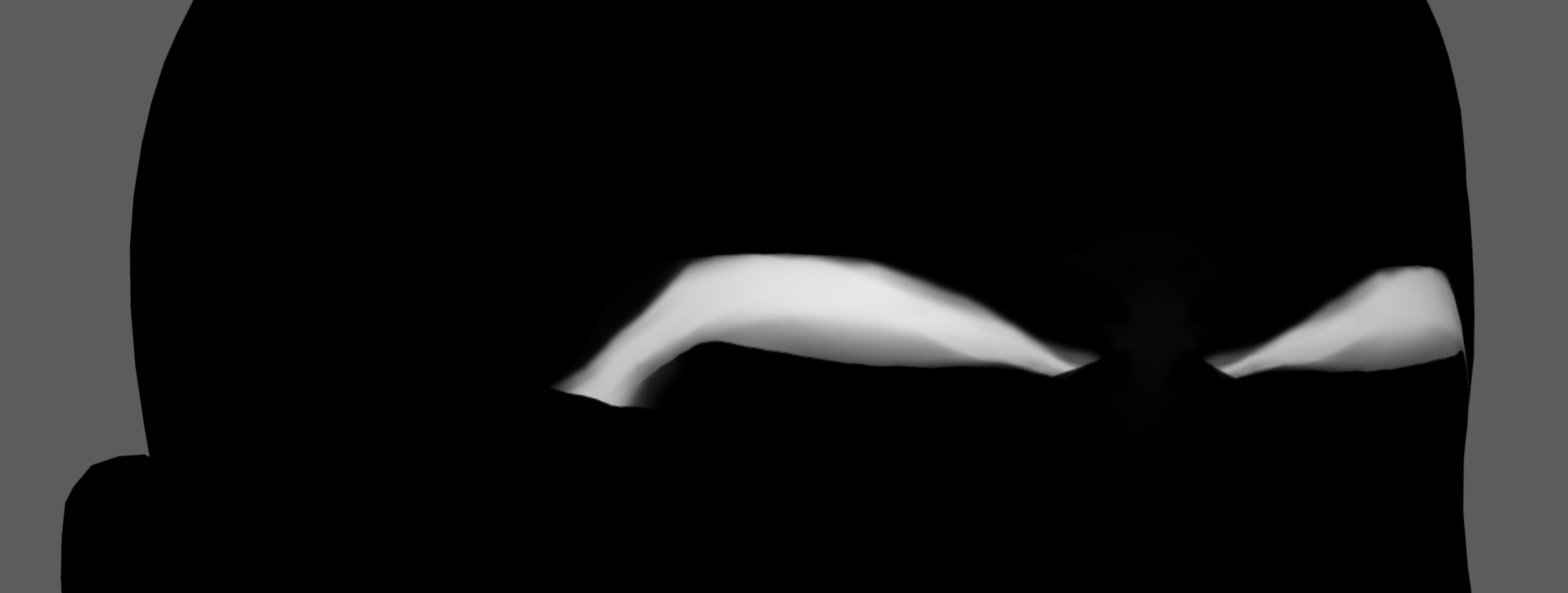
- Width Map - controls strand thickness and helps soften the eyebrow boundaries. See "Defining Strand Width":#Defining-Strand-Width.
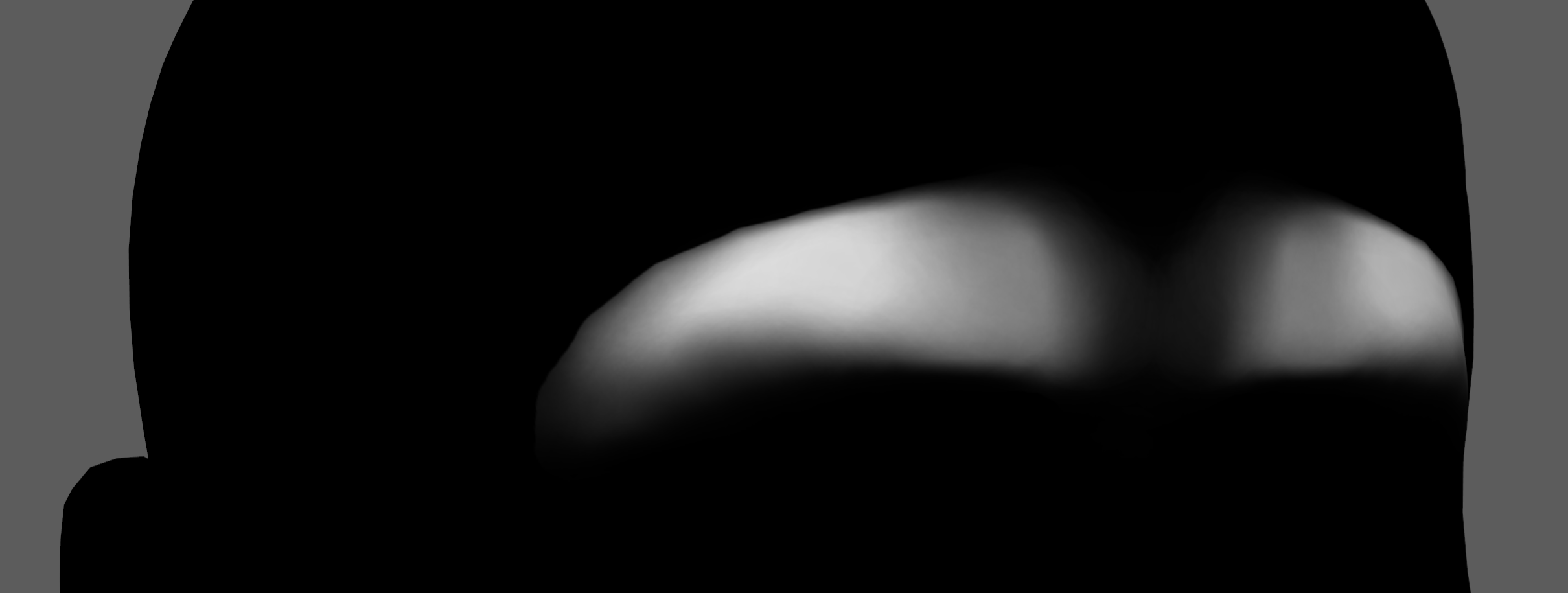
The same principle we used for the beard applies here:
Solve the distribution, length, and width before spending time grooming the strand direction.
The Distribution Map defines the overall eyebrow silhouette, while the Length and Width maps provide the more subtle transitions around its edges.
As with the beard, avoid relying only on the Distribution Map to create those transitions. Leaving some additional distributed strands around the boundary gives the Length and Width maps enough room to gradually fade the eyebrow into the surrounding skin.
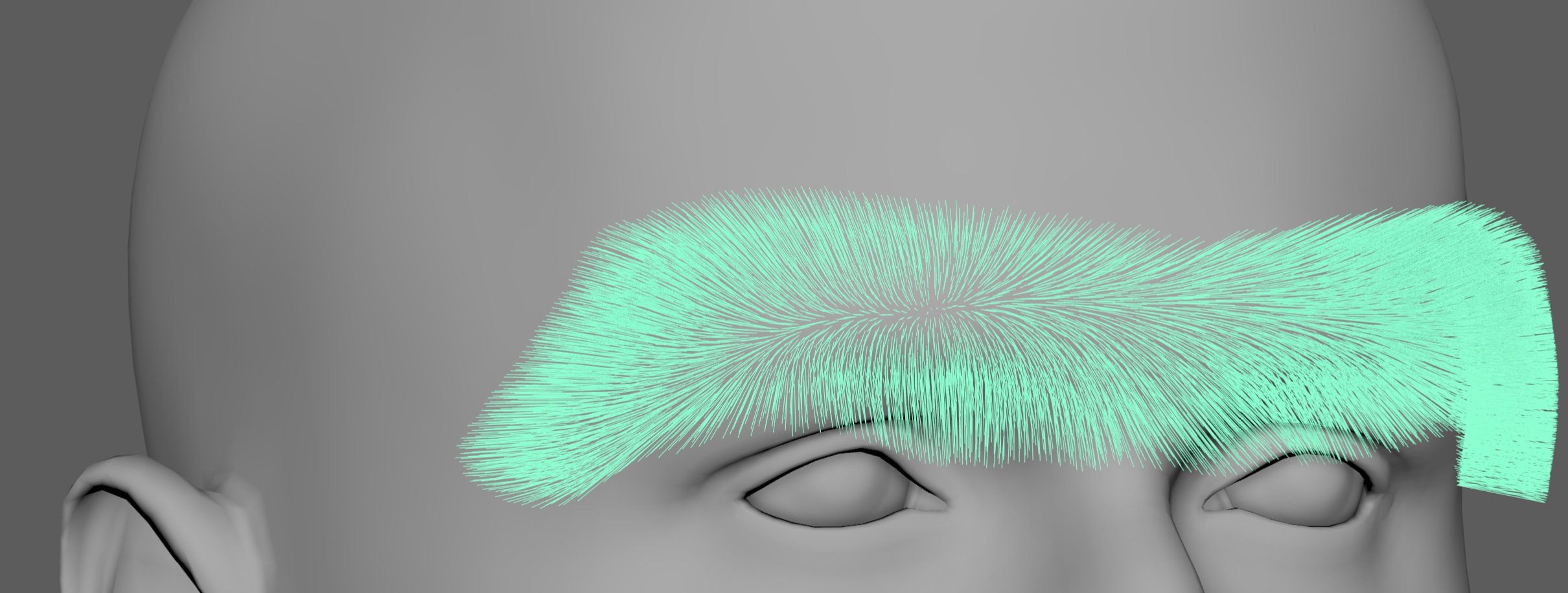
Grooming the Eyebrows with Surface Comb
Once the basic eyebrow shape is established, use Surface Comb to control the direction of the strands.
The Surface Comb workflow was explained in detail in "Grooming with Surface Comb":#Grooming-with-Surface-Comb.
Eyebrow hairs usually have a characteristic flow pattern. Strands from the upper part of the eyebrow tend to angle downward toward the center, while strands from the lower part tend to angle upward toward the center. Together, they create a subtle central convergence line, similar to a long clump that follows the overall direction of the eyebrow from the inner region toward the outer end.
To reproduce this flow, use Curved Sinks in Surface Comb. Curved Sinks can be created by holding Ctrl while clicking and dragging on the surface.
Use the curved sinks to guide the upper and lower strands toward the center while also following the natural direction of the eyebrow.
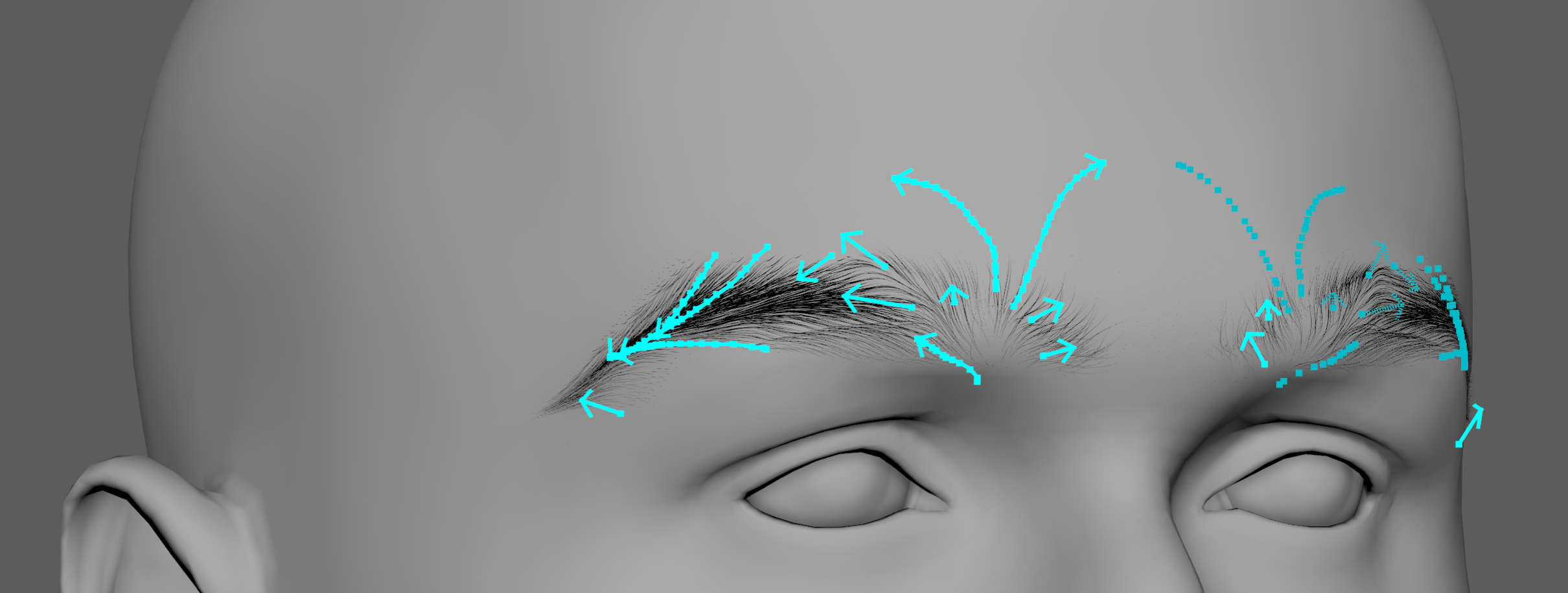
Keep the effect subtle. The goal is not to create a visibly separated clump, but to reproduce the natural directional convergence commonly visible in eyebrow hair.
Near the medial end of the eyebrow, close to the bridge of the nose, I disable Mirror for some of the sinks and adjust them independently on each side. This introduces subtle asymmetry between the left and right eyebrows and helps avoid an overly mirrored or artificial result.
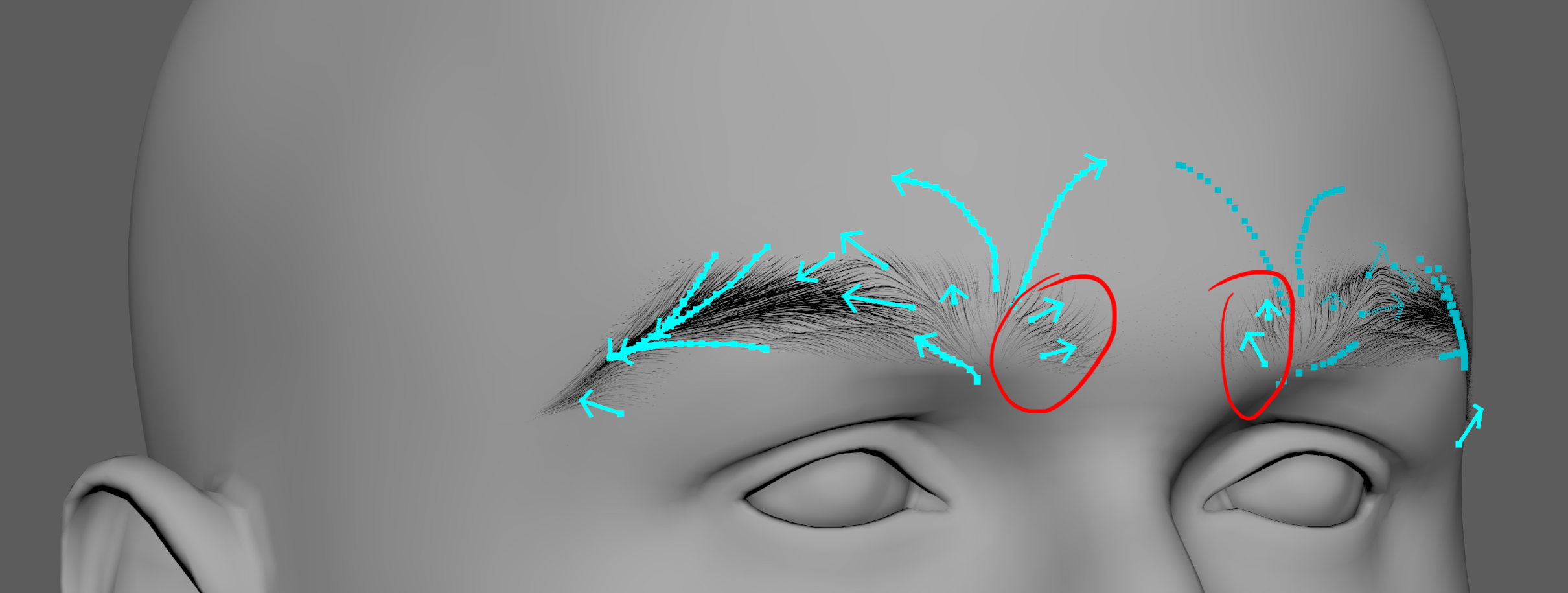
Use your reference images while adjusting the sinks, especially the central flow line and how it gradually changes direction from the inner eyebrow toward the outer edge.
I also adjusted the Slope Ramp and increased the Maximum Bend Value near the roots. This keeps the strands closer to the skin as they emerge from the surface, producing a flatter and more natural eyebrow profile.
Before adjusting the Slope Ramp and Maximum Bend Value: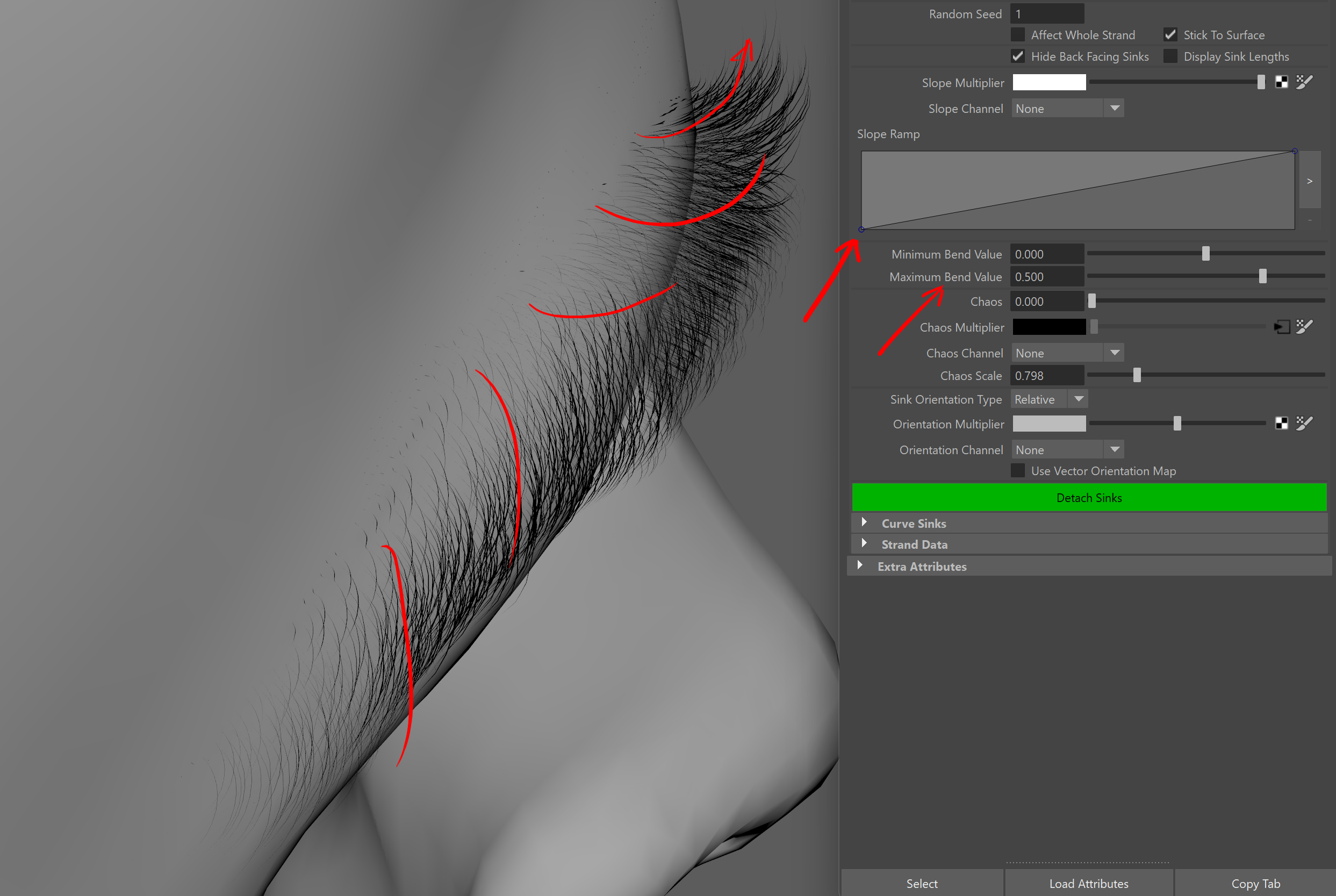
After the adjustments: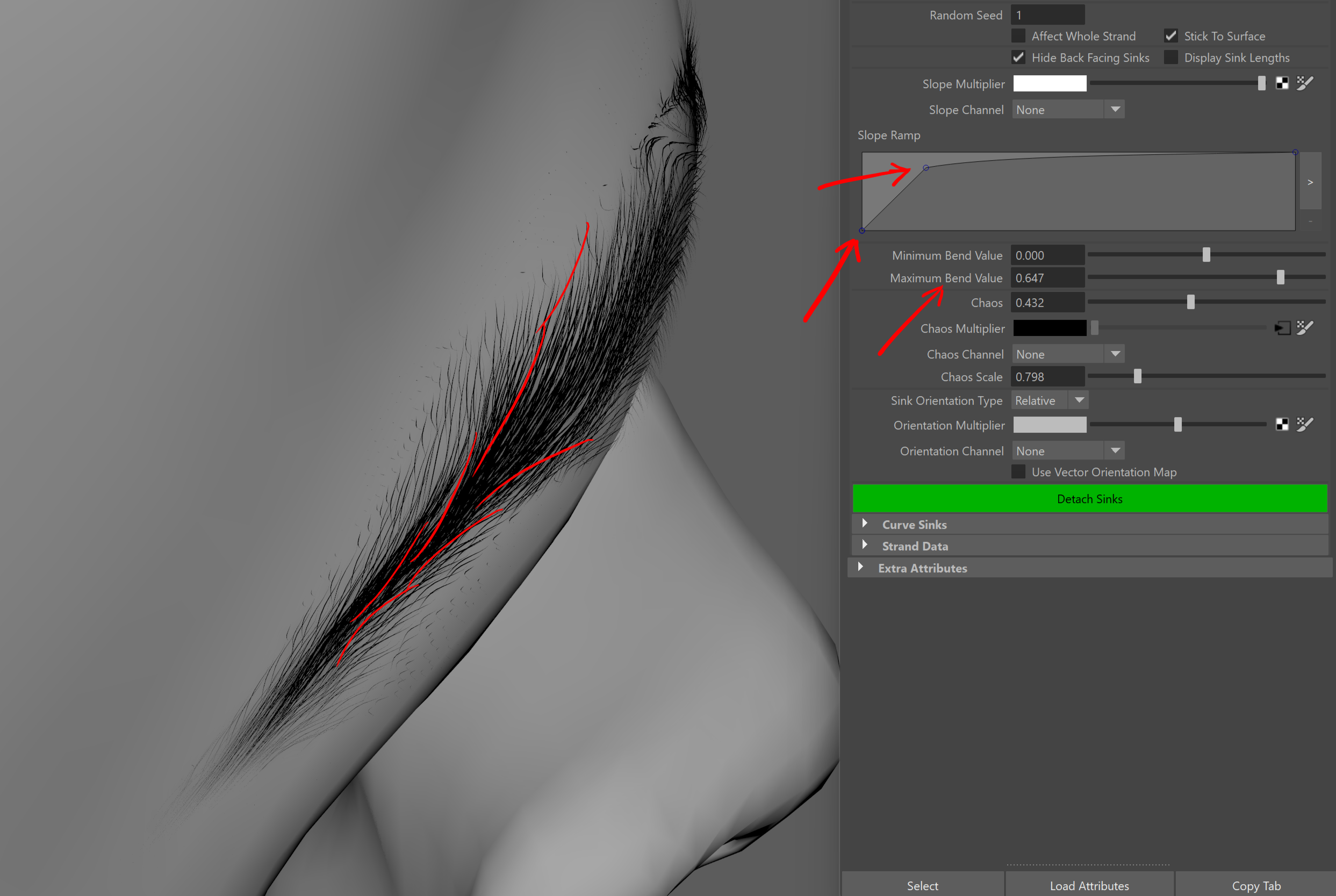
I also created an additional map to control the Chaos parameter in Surface Comb.
Chaos randomizes the directions established by Surface Comb, which helps break up the grooming pattern and reduce visible symmetry. In this example, I use:
- Chaos:
0.432 - Chaos Scale:
0.798
I also connect a bitmap to the Chaos Multiplier slot so the effect is applied selectively across the eyebrow.
This is the Chaos Multiplier map: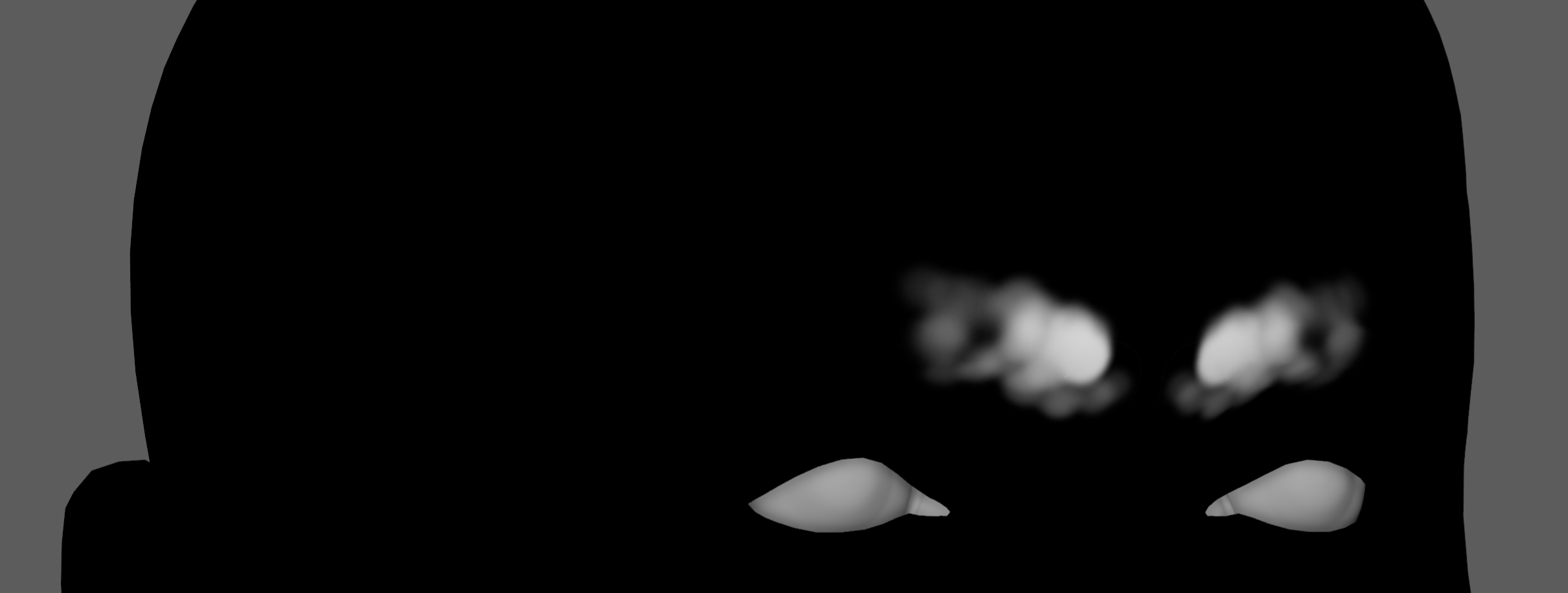
And this is the result after applying it:
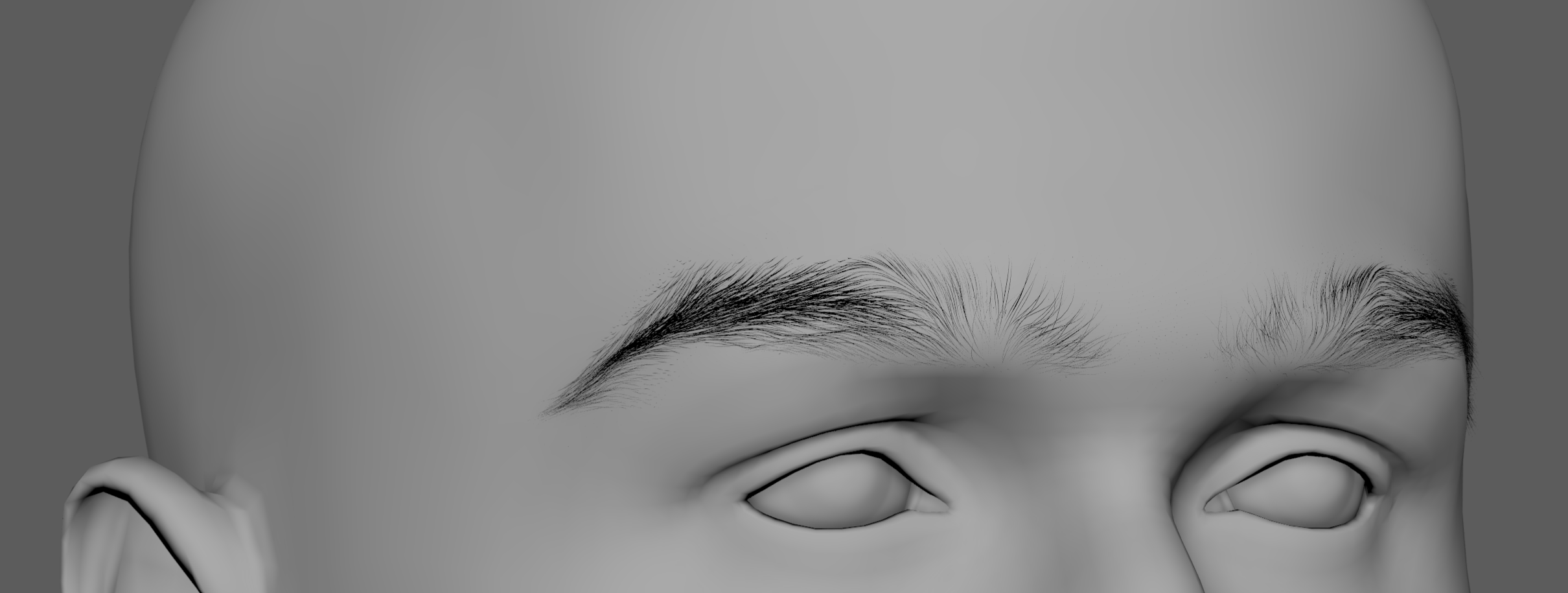
If adjusting Surface Comb causes some strands to penetrate the skin, add a Push Away from Surface operator to push them back out.
Finally, experiment with additional Frizz or Curl operators, and continue refining the multiplier maps to add the final touches to the groom.