


Strand Groups
Strand Groups are a simple way to organize strands into sets.
Each group is identified by a number. You can then tell any operator that supports Strand Groups to affect only the strands in a specific group.
In the viewport, each Strand Group is displayed with a different color, making it easy to see how the groom is divided.
Strand Groups can be created manually or generated procedurally, depending on the workflow.
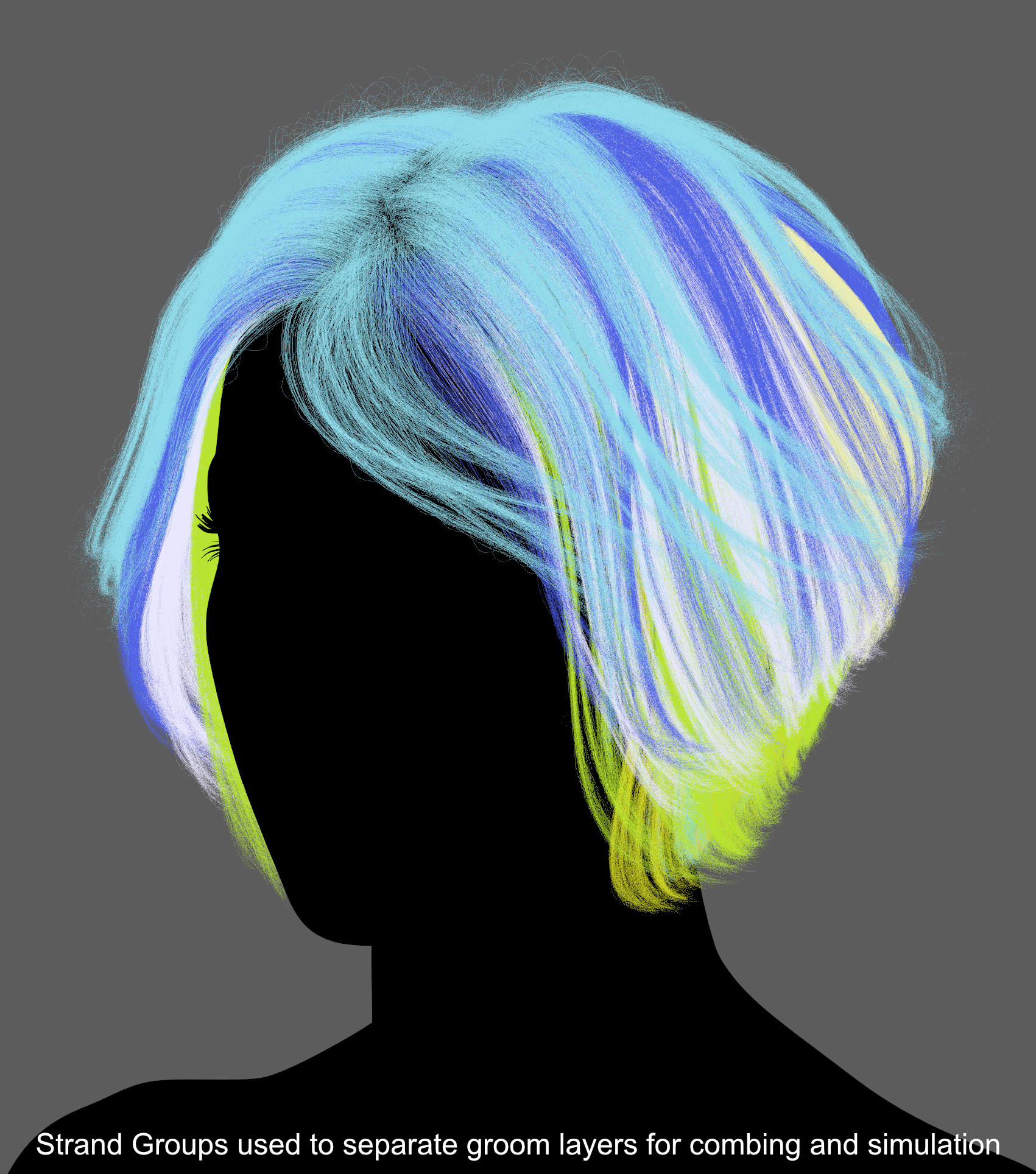
Creating Strand Groups
Manually
The most common way to create Strand Groups is with the Edit Guides operator.
You can assign groups to guides, or place Edit Guides above Hair from Guides to assign groups directly to generated hair strands.
To assign Strand Groups using Edit Guides:
- Set Selection Mode to Strands Selection and select one or more guides or strands.
Note: You can also use the Selection Brush. - Expand the Strand Data section and open Strand Groups.
- Enable Use Strand Groups.
- Enter the desired group ID in the Strand Group field.
- Click Assign to assign the selected guides or strands to that group.
Alternatively, click Auto Group to automatically assign a unique Strand Group ID to the selected strands.
Note: The Strand Group field also displays the group ID of the currently selected strands in the Edit Guides operator.
Procedurally
Several Ornatrix operators can generate Strand Groups automatically from data they already process.
This is useful when the grouping naturally follows the structure or behavior of the groom, instead of being painted or assigned manually.
Hair From Mesh Strips
When using the Hair From Mesh Strips operator, enable Use Per-Strip Strand Groups.
Each input mesh strip will receive its own Strand Group, making it easy to identify and process the hair generated from each strip separately.
[Insertar imagen de ejemplo]
Generate Strand Data
Generate Strand Data can generate Strand Groups from different types of procedural data.
Set Target Data to Strand Groups, then choose how the group values should be generated using the available Generation Methods.
For example, groups can be generated from random values, strand index, strand length, distance, expressions, and other data.
[Insertar imagen de ejemplo]
Note: Generate Strand Data replaces the existing Strand Group values with the newly generated ones.
Surface Comb
Surface Comb uses sinks to control the direction and flow of strands across the surface.
When Apply to Strand Data and Set Strand Groups are enabled, Surface Comb can also generate Strand Groups from the sink data it is already using.
This allows the groom to be divided into groups that follow the same regions defined by the combing setup.
[Insertar imagen de ejemplo]
Using Strand Groups
You can specify Strand Groups in the Strand Group field of any operator that supports them.
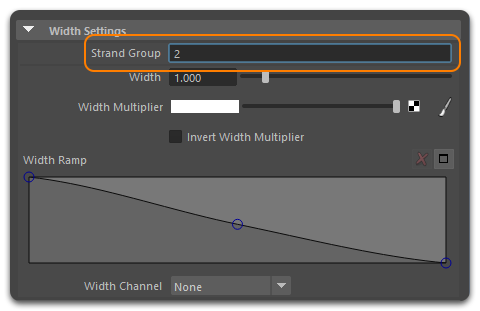
The value in this field determines which guides or strands the operator will affect.
A value of 0 affects strands that do not have another group assigned. In other words, 0 is the default Strand Group ID.
Strand Group Patterns
Strand Group Patterns allow you to target multiple Strand Groups using a single expression.
|
Using Strand Group Patterns |
The following patterns can be used:
- Single group
Enter a single value to affect one Strand Group.
Example: 3
- Multiple groups
Enter multiple values separated by commas.
Example: 1, 3, 5 affects groups 1, 3, and 5.
- Range of groups
Use a colon to specify a continuous range.
Example: 1:5 affects groups 1 through 5.
- All groups except one
Use^to exclude a group.
Example: ^4 excludes group 4.
- Range with a stride
Use three values separated by colons to define a range and stride.
Example: 1:10:2 selects every second group from 1 through 10.
- All groups higher than
Use+before a value to include that group and all higher group IDs.
Example: +2 affects groups 2 and above.
- Excluding a range of groups
Use^before a range.
Example: ^4:6 excludes groups 4 through 6.
- Single group and a range
Combine individual groups and ranges using commas.
Example: 1,3:5 affects group 1 and groups 3 through 5.
Group Blending
Hair operators that modify strand shape may provide an additional Blend Distance parameter.
When Blend Distance is greater than 0, the effect of the operator is blended smoothly between the targeted Strand Groups and the surrounding hair.
Use this to avoid visible seams when applying shape-changing operators to specific areas of a groom.